Line Drawer
- You can use the line drawing tools to find intersection points, draw a straight line, or free draw.
- Click on the three tool links below to learn how and when to use each tool.
- NOTE: Changing tools will clear any lines drawn with the previous tool.
Connect 2 Points [+/-]
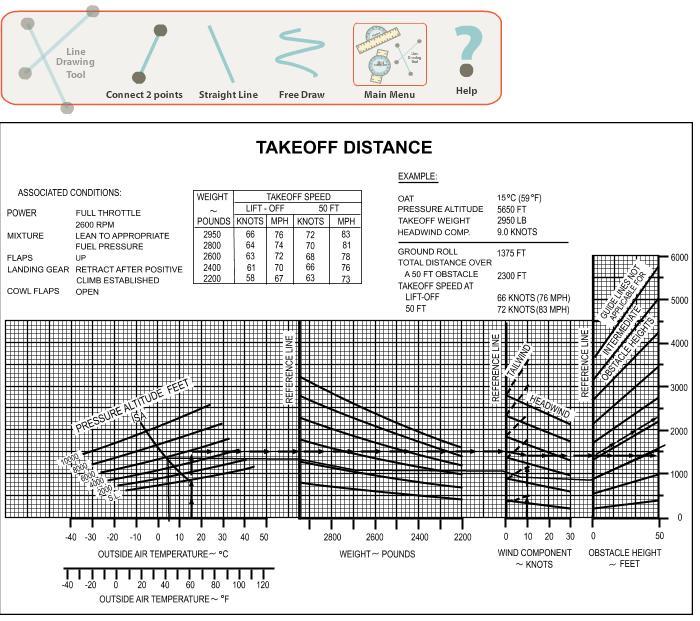
- Use this tool to solve complex performance graphs where multiple lines are needed.
- To use this tool:
- Click the tool name on the main menu bar.
- Click the point where you want the line to begin.
- Click the point where you want the line to end.
- To draw the next line, simply click again to start a new line. You may draw as many lines
as are necessary.
- To clear your lines, click clear on the main menu bar.
- In the example below, a takeoff distance chart is solved.
Straight Line [+/-]
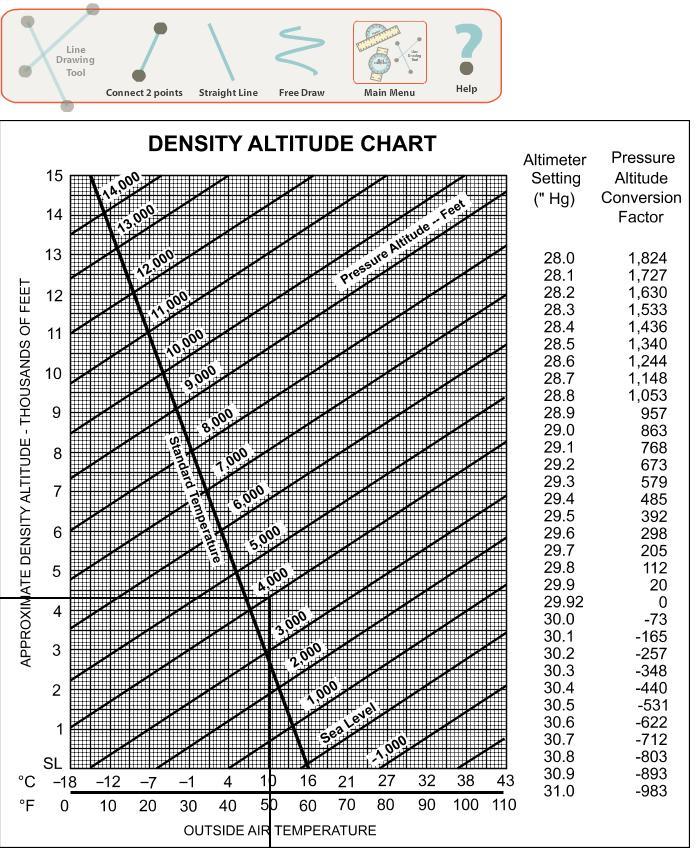
- Use this tool to find the point of
intersection on graphs, such as density altitude, weight and
balance, and basic performance graphs.
- To use this tool:
- Click the tool name on the main menu bar.
- Click within the image to match up the necessary points.
- In the example below, the outside air temperature is 10 degrees Celsius and the pressure
altitude is 4,000 feet. This tool connects these values and draws a straight line to the
density altitude value of 4,300 feet.
Free Draw [+/-]
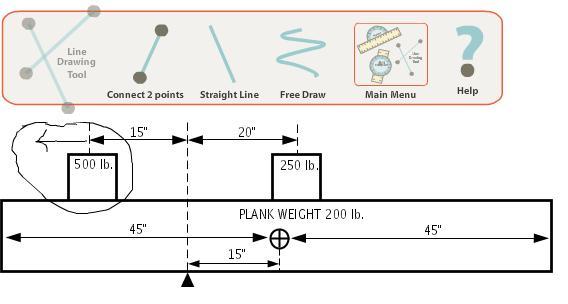
- Use this tool for any purpose where you need to draw on screen.
- To use this tool:
- Click the tool name on the main menu bar.
- Click and hold the left mouse button and draw as though you were holding a pencil.
- To clear your drawing, click clear on the main menu bar.