Contact Us : 800.874.5346 International: +1 352.375.0772

Traditional CIA Review
with SmartAdapt™
CIA Test Bank
Industry Leader and IIA Authorized Licensee
Gleim set the standard with the first Certified Internal Auditor review course in 1980, and we put our 45+ years of experience to work for you.
Industry Leader and IIA Authorized Licensee
Gleim set the standard with the first Certified Internal Auditor review course in 1980, and we put our 45+ years of experience to work for you.
The Gleim Methodology
Built by professional educators
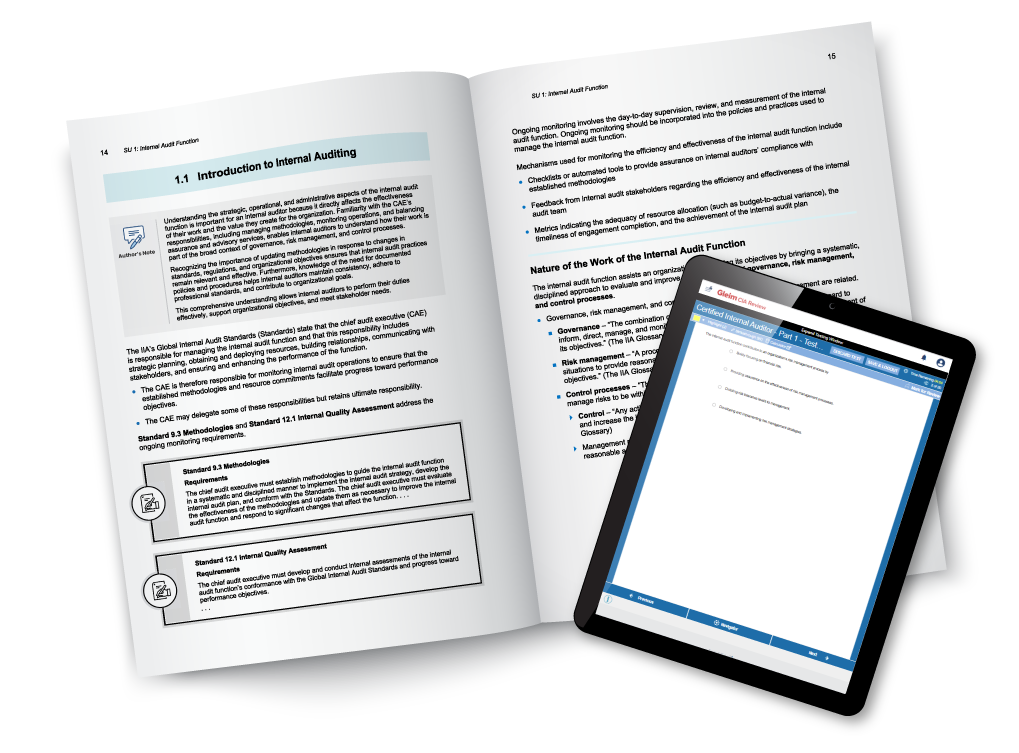
Our materials are structured to help you improve and turn every mistake into a learning opportunity. Every question in our course has explanations for both right and wrong answers because we want you to understand the concepts behind the questions. Our approach has been vetted by authors with prestigious university careers—passionate educators who have spent their lives training new generations of auditing professionals.
You’ll learn quickly, but more importantly, you’ll build a deep understanding of the topics that will serve you throughout your internal audit career.
Gleim Instruct
Redefining Self Study
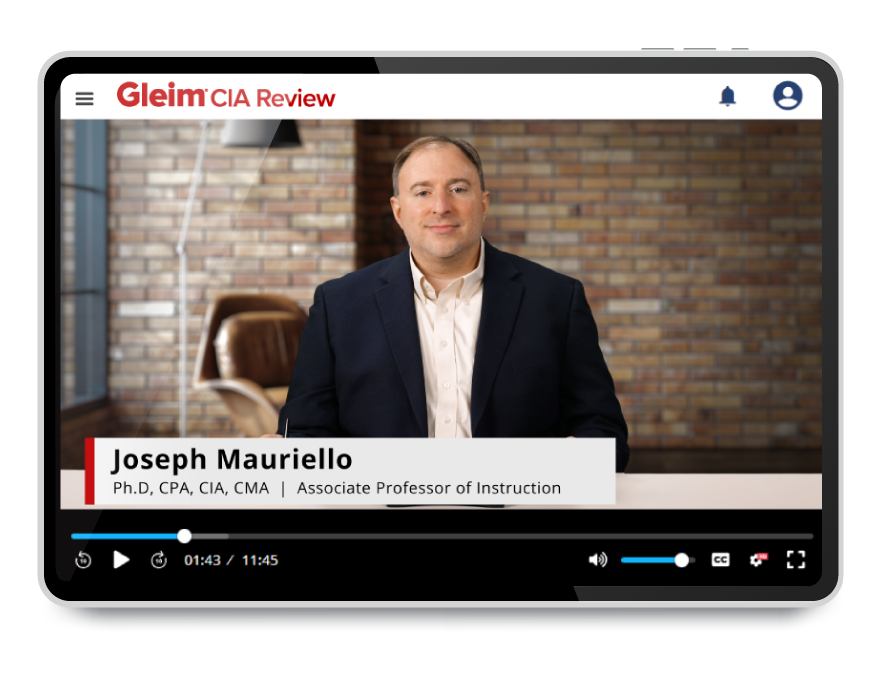
Our Premium CIA Review course offers over 45 hours of video lectures led by Gleim Instruct Professor Joseph Mauriello, Ph.D., CIA, CMA, CPA, Director of the Center for Internal Auditing Excellence at the University of Texas at Dallas (UTD). We’ll guide you through multiple-choice questions, in-depth, real-world examples, and the most tested concepts from The IIA’s Exam Syllabus!
Adaptive Technology
Know what to study. Know how to study it.
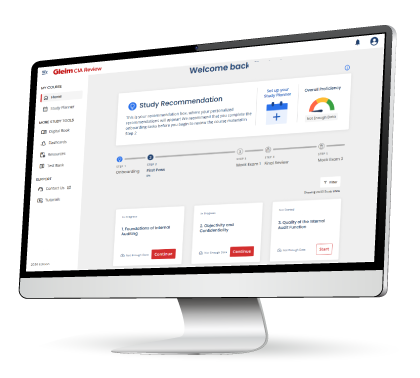
You don’t just get the best materials. You get industry-leading tools and features that guarantee you a passing score. SmartAdapt™, our adaptive online platform, is your personal exam tutor. It evaluates your performance, guides you to the resources you need, and adjusts as your quiz scores improve. SmartAdapt even tells you when you’re ready to take your exam.
Realistic Exam Environment
Don’t just build knowledge. Build confidence.
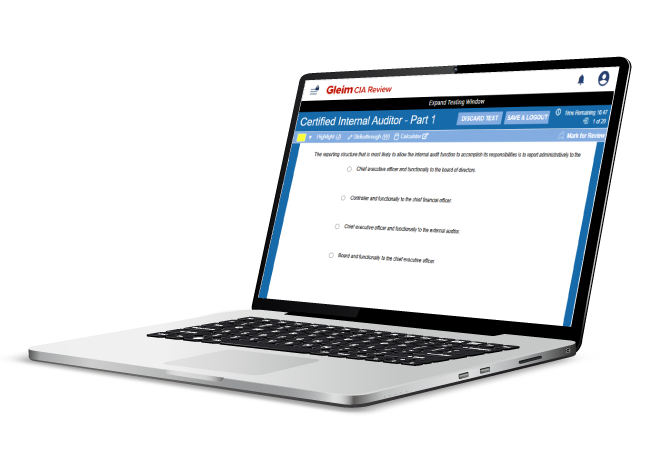
The best way to build your confidence is to get familiar with the Pearson VUE testing environment you’ll encounter on exam day. All of our questions match the exam, but the full-length mock exams built into the course give you an authentic exam-day experience. Our mock exams reproduce everything, from the look and length of the test to the weighting of the topics, exactly like you’ll encounter on the real CIA exam. When you’re finished, any topics you still need to brush up on will be emphasized in your personalized Final Review so you can be fully confident on exam day!
The Gleim Methodology
Built by professional educators
Our materials are structured to help you improve and turn every mistake into a learning opportunity. Every question in our course has explanations for both right and wrong answers because we want you to understand the concepts behind the questions. Our approach has been vetted by authors with prestigious university careers—passionate educators who have spent their lives training new generations of auditing professionals.
You’ll learn quickly, but more importantly, you’ll build a deep understanding of the topics that will serve you throughout your internal audit career.
Gleim Instruct
Redefining Self Study
Our Premium CIA Review course offers over 45 hours of video lectures led by Gleim Instruct Professor Joseph Mauriello, Ph.D., CIA, CMA, CPA, Director of the Center for Internal Auditing Excellence at the University of Texas at Dallas (UTD). We’ll guide you through multiple-choice questions, in-depth, real-world examples, and the most tested concepts from The IIA’s Exam Syllabus!
Adaptive Technology
Know what to study. Know how to study it.
You don’t just get the best materials. You get industry-leading tools and features that guarantee you a passing score. SmartAdapt™, our adaptive online platform, is your personal exam tutor. It evaluates your performance, guides you to the resources you need, and adjusts as your quiz scores improve. SmartAdapt even tells you when you’re ready to take your exam.
Realistic Exam Environment
Don’t just build knowledge. Build confidence.
The best way to build your confidence is to get familiar with the Pearson VUE testing environment you’ll encounter on exam day. All of our questions match the exam, but the full-length mock exams built into the course give you an authentic exam-day experience. Our mock exams reproduce everything, from the look and length of the test to the weighting of the topics, exactly like you’ll encounter on the real CIA exam. When you’re finished, any topics you still need to brush up on will be emphasized in your personalized Final Review so you can be fully confident on exam day!
From start to finish
Dedicated live support.
If you have questions, our live support team has the answer. Our Personal Counselors can help you set up your study plan, and from start to finish, they are there to guide you, celebrate with you, and most importantly, they’ll ensure your exam success. You decide how much you want them involved in your exam prep!

From start to finish
Dedicated live support.
If you have questions, our live support team has the answer. Our Personal Counselors can help you set up your study plan, and from start to finish, they are there to guide you, celebrate with you, and most importantly, they’ll ensure your exam success. You decide how much you want them involved in your exam prep!
The Gleim CIA review system provided lots of great examples and interpretations of conceptual problems, and it really helped me understand how to apply internal audit concepts into real world applications.

Gleim was a great choice to help with my CIA exam preparation. The flexibility of the system and feedback to pinpoint areas I needed to work on really helped balance the demands of getting up to speed in a new job while also preparing for the exam.

Gleim CIA review is the perfect CIA preparation program for working professionals. The layout of Gleim’s practice exam sessions was identical to the actual exam experience. Consequently, on exam day I felt very comfortable as I moved through the exam questions.
