Contact Us : 800.874.5346 International: +1 352.375.0772

On this page, you will find step-by-step instructions on how to fully integrate Gleim Professor-Led Accounting (P-Led AC) / AvLearn into your Learning Management System (LMS.)
This three-step process requires the LMS administrator, professor, and students to complete their instructions in order, i.e., students cannot complete their portion before the LMS administrator and professor have done theirs.
If you encounter any issues, please contact support@gleim.com for support.
If you are a returning user with an existing Developer Key, you can reuse your Client ID to connect any of your new Canvas courses to your Professor-Led groups. Skip ahead to Step 6 instructions for LMS Administrators to connect a new Canvas course to your Professor-Led group(s).
If you are a new user, proceed to Step 1 of these instructions.
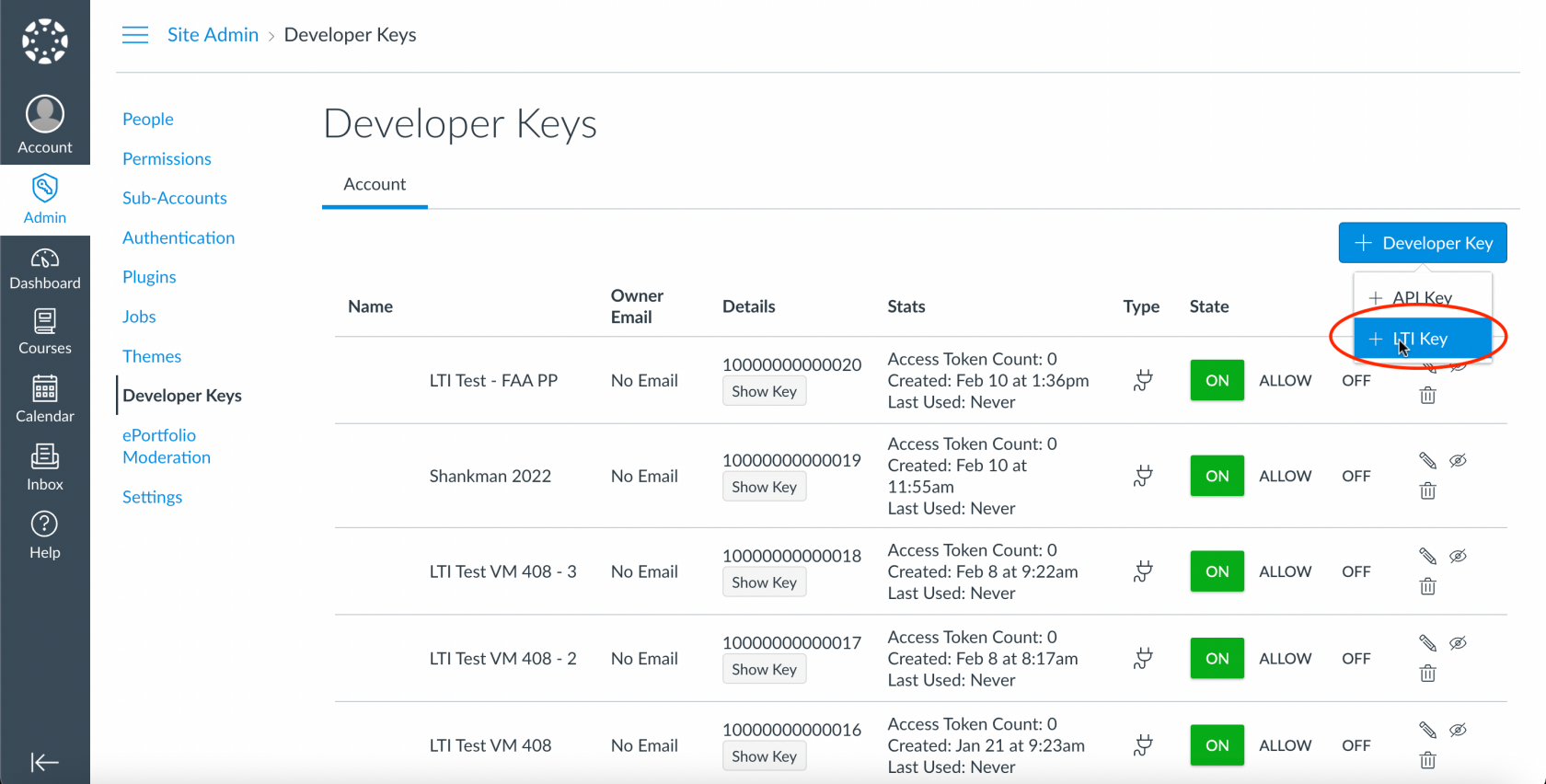
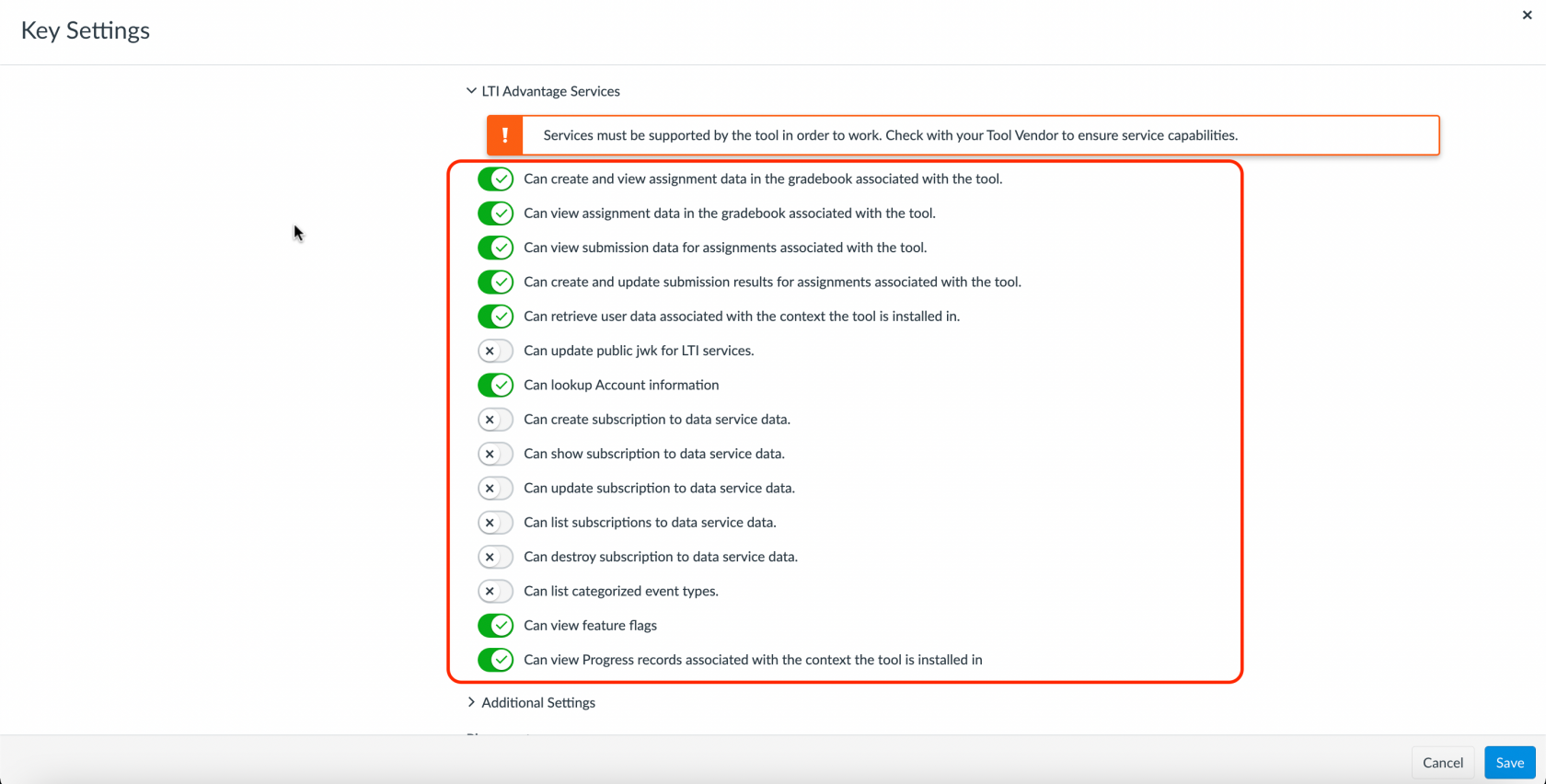
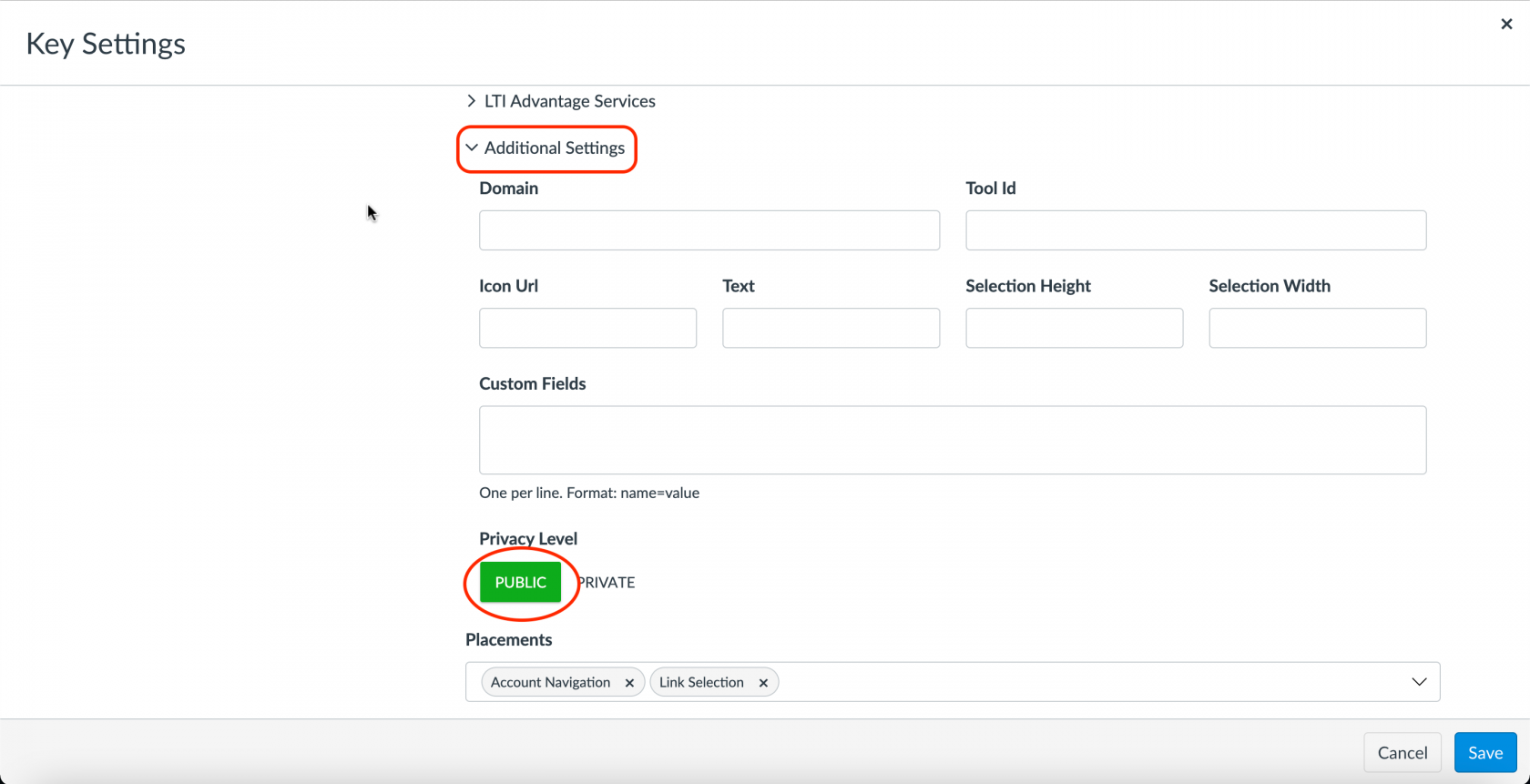
https://lti.teamgleim.com/v1/tool/launchhttps://lti.teamgleim.com/v1/tool/launchhttps://lti.teamgleim.com/v1/tool/launchhttps://lti.teamgleim.com/v1/tool/jwks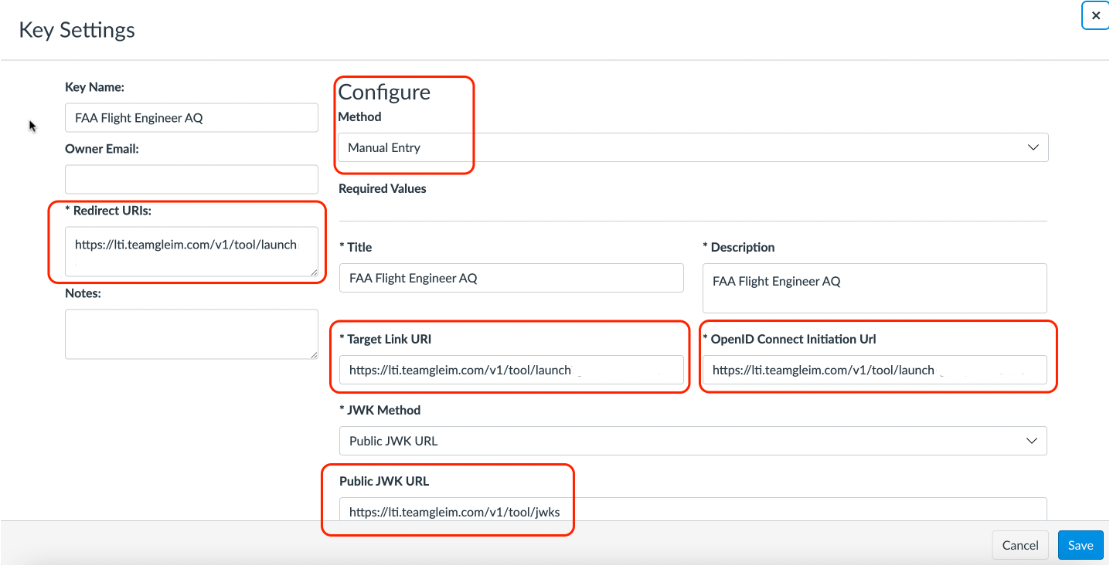
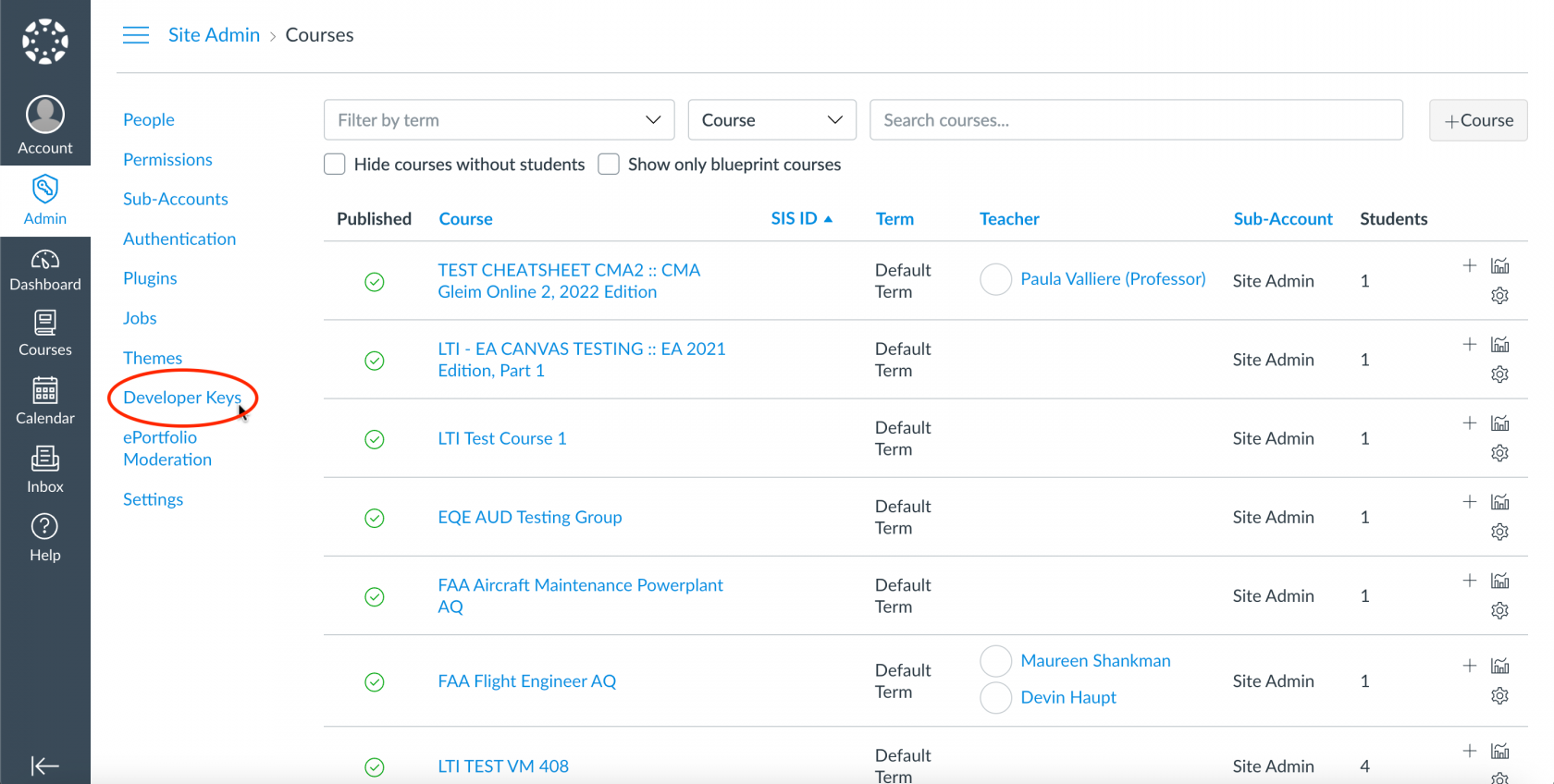
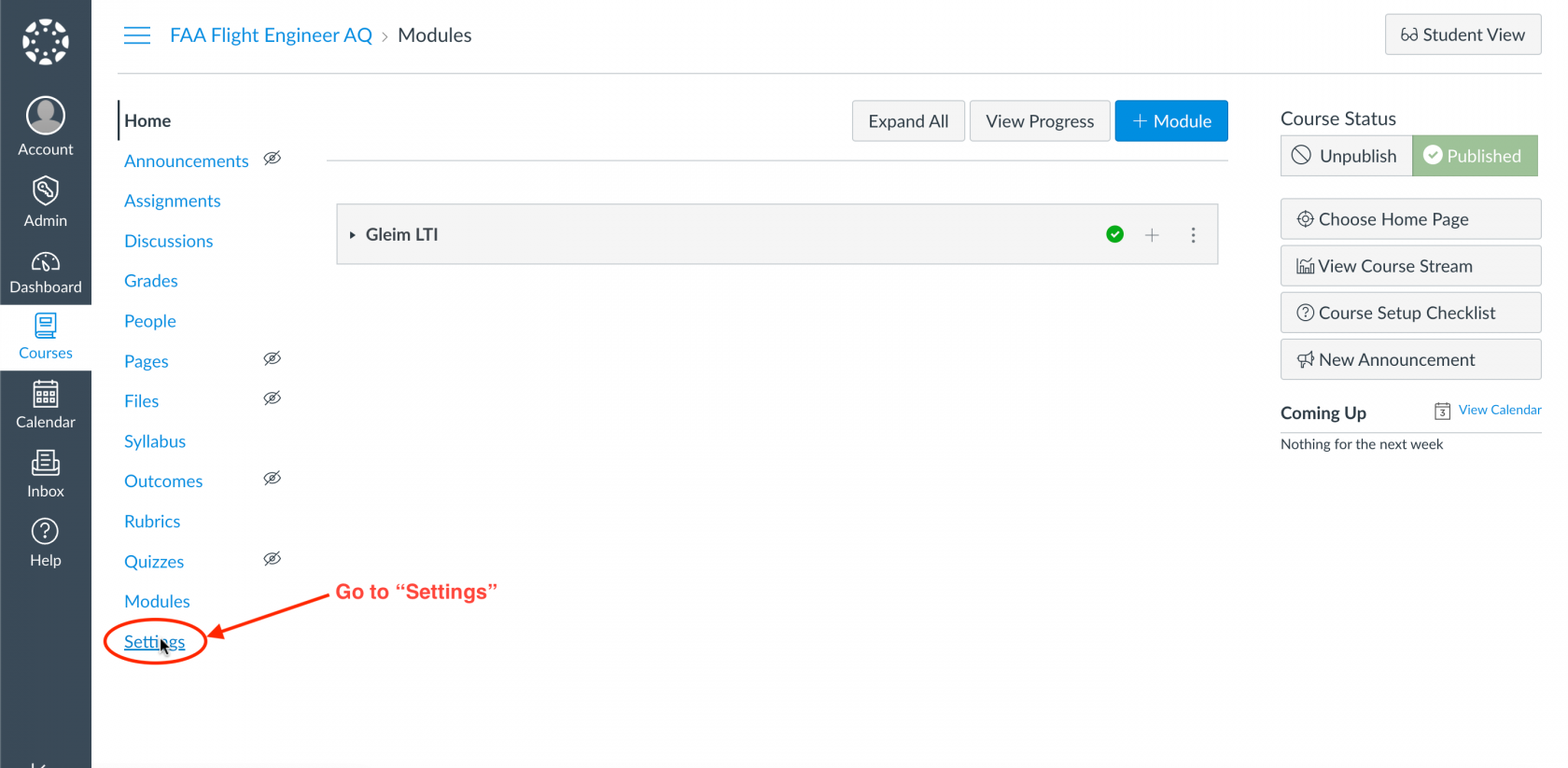
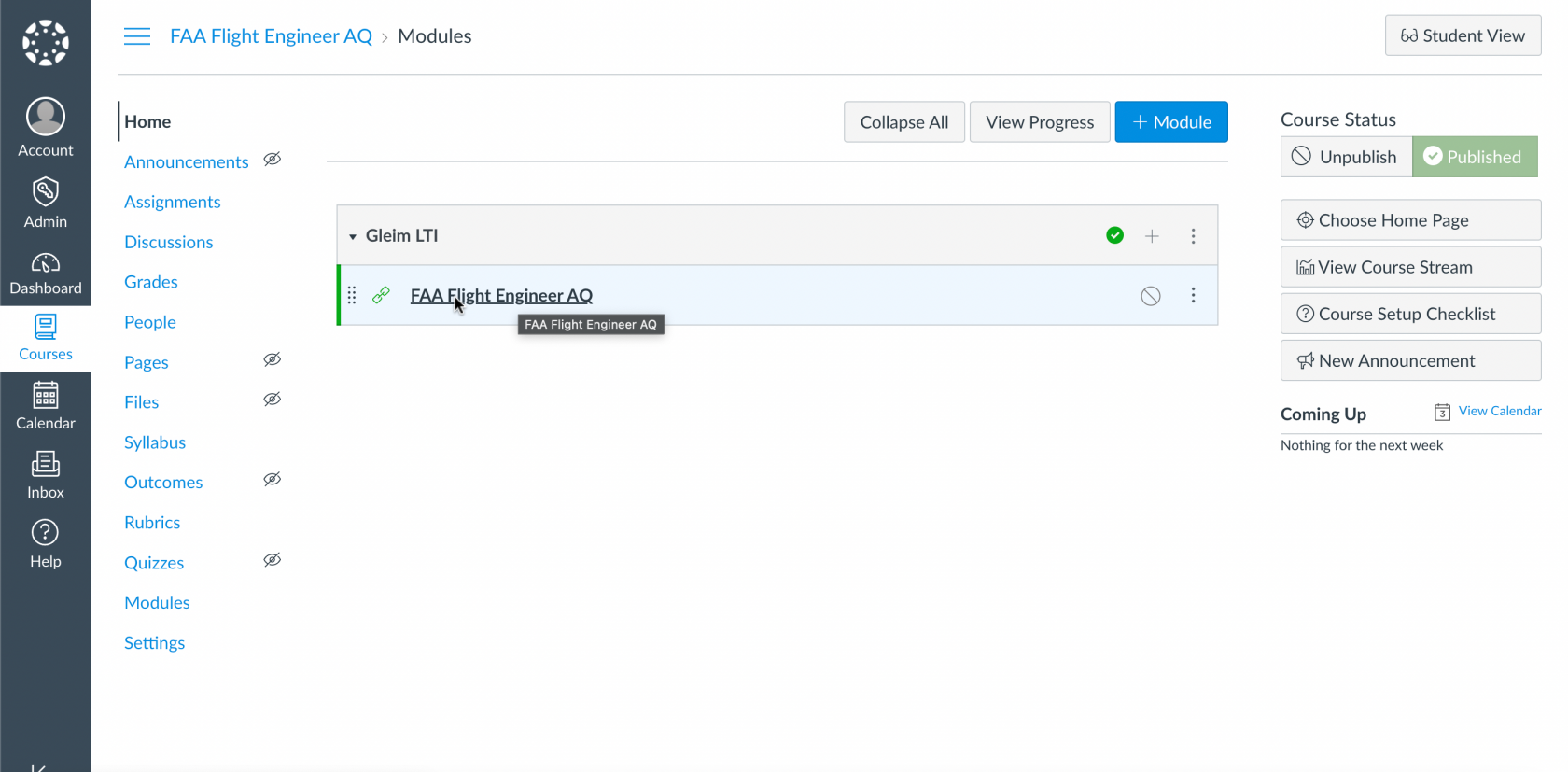
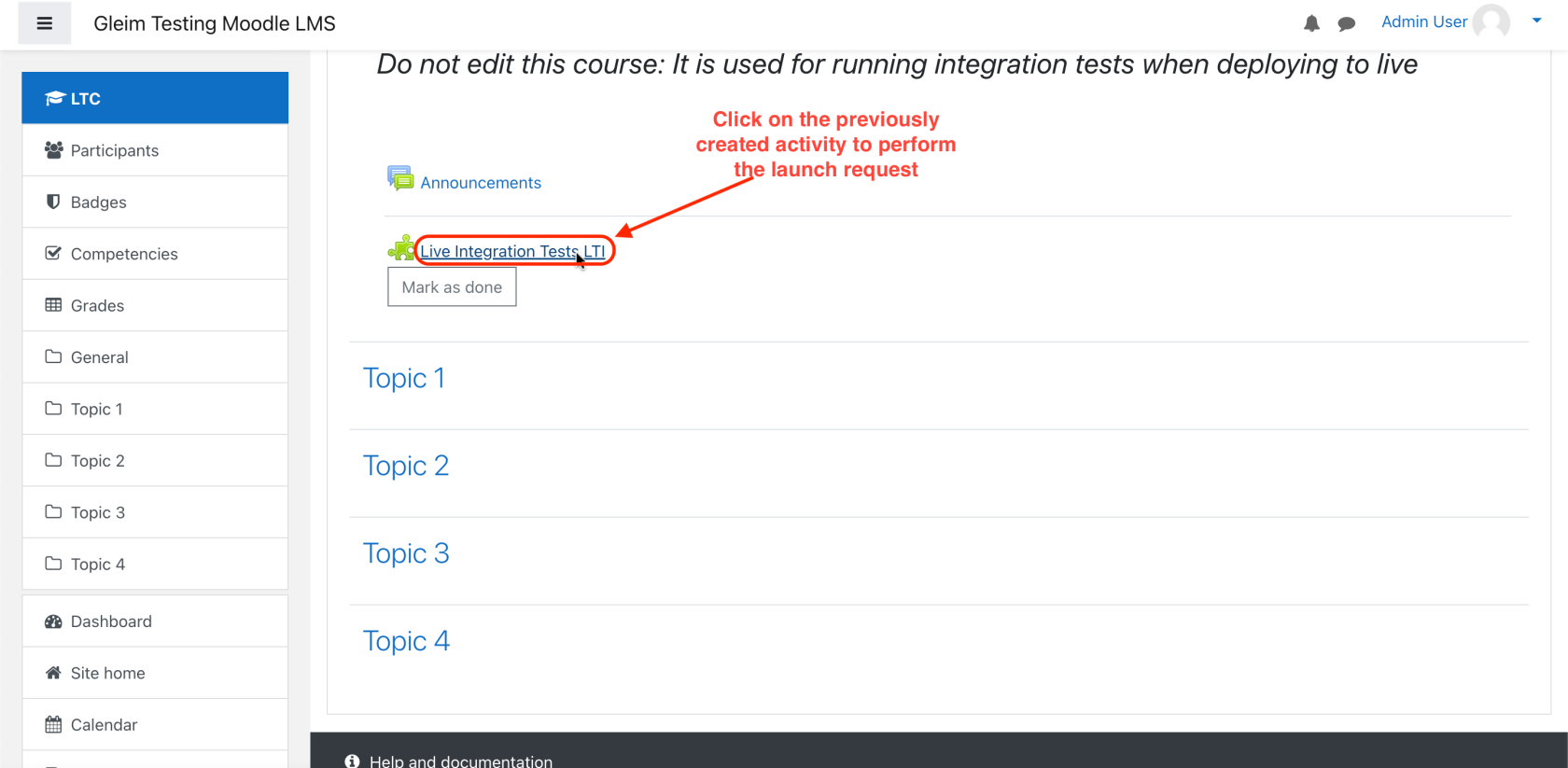
Alternatively, you may click on the Admin Account Name (e.g., Site Admin) to access the Courses tab and select the course you want to integrate.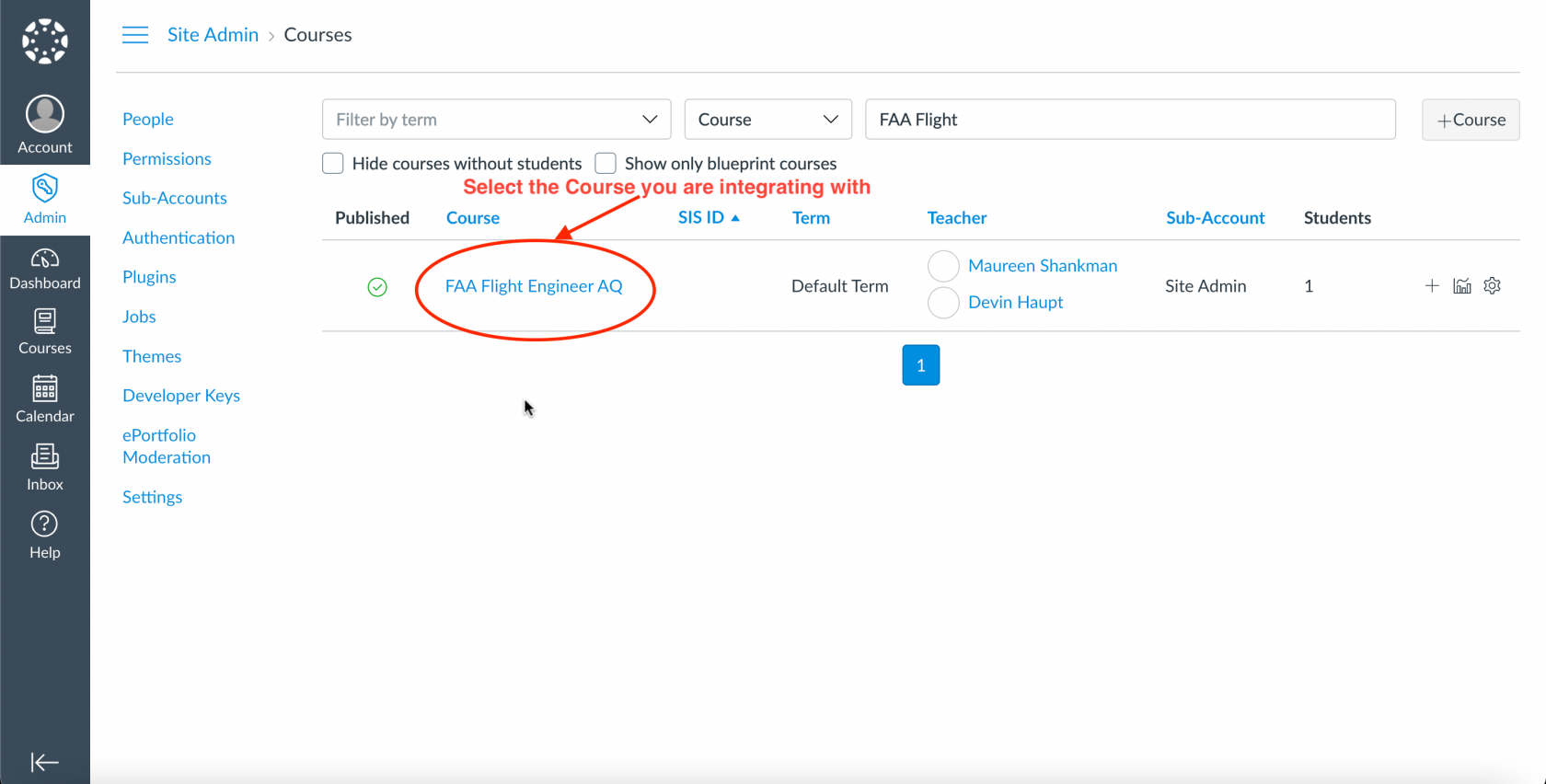
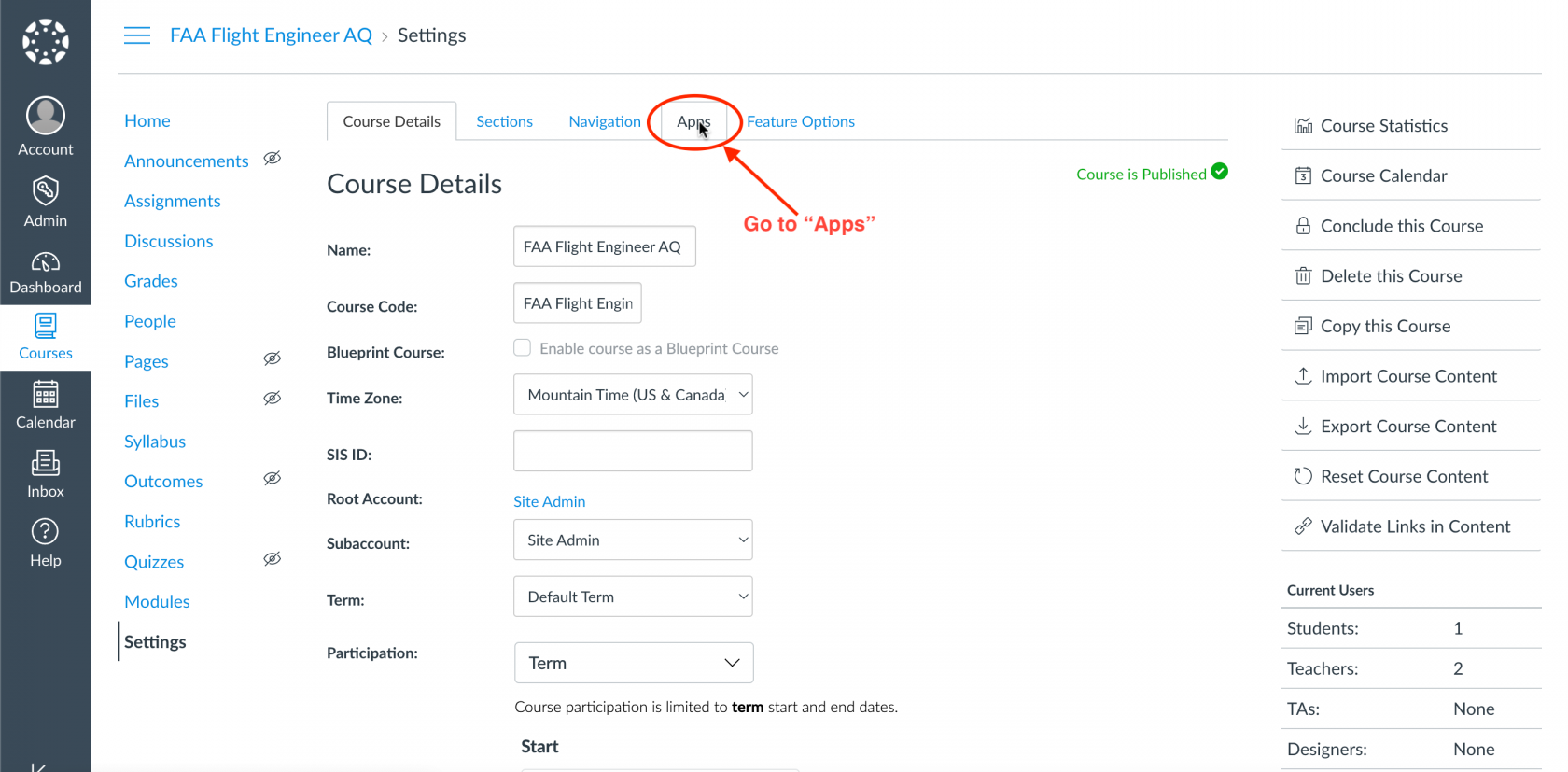
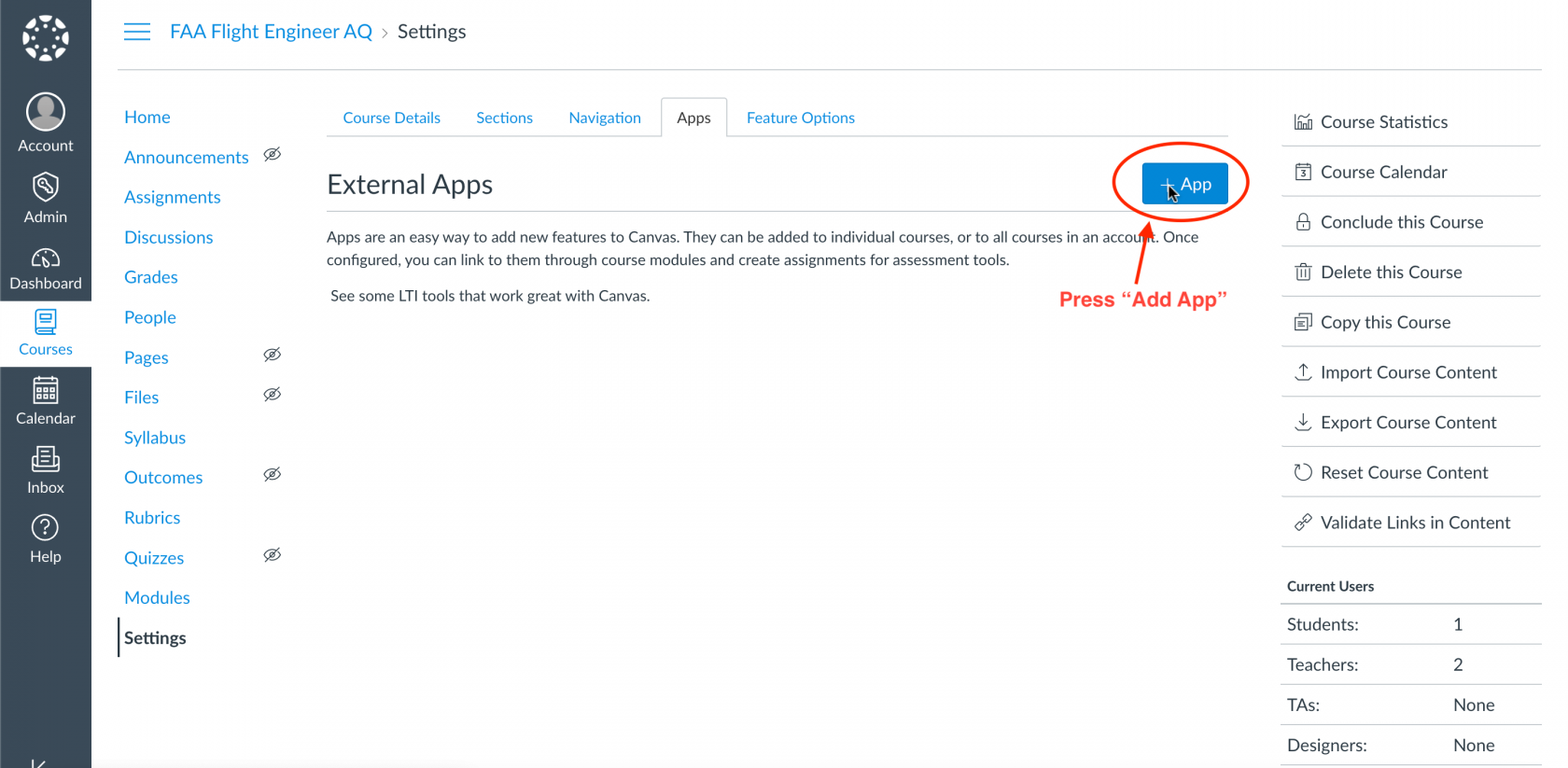
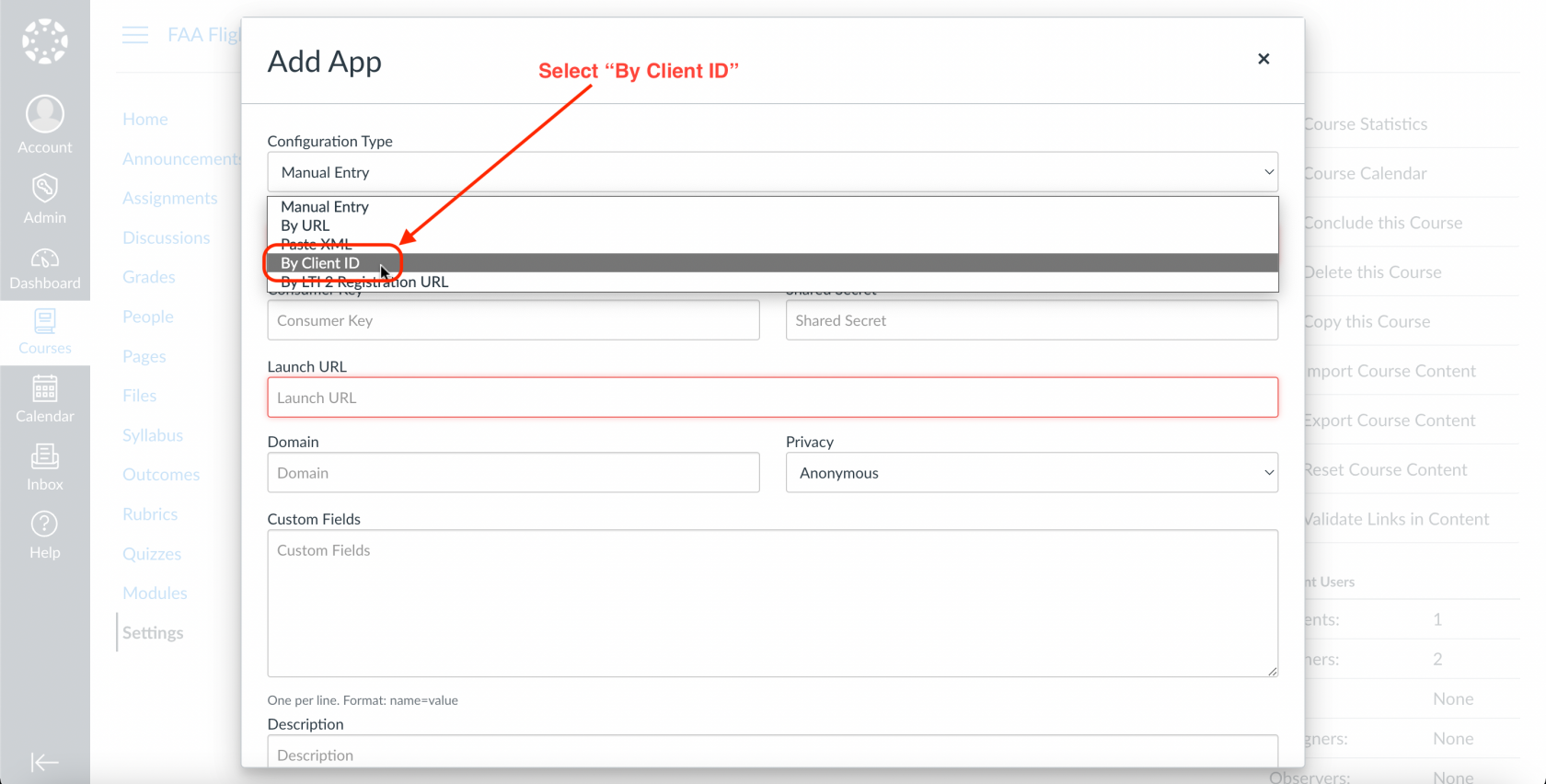
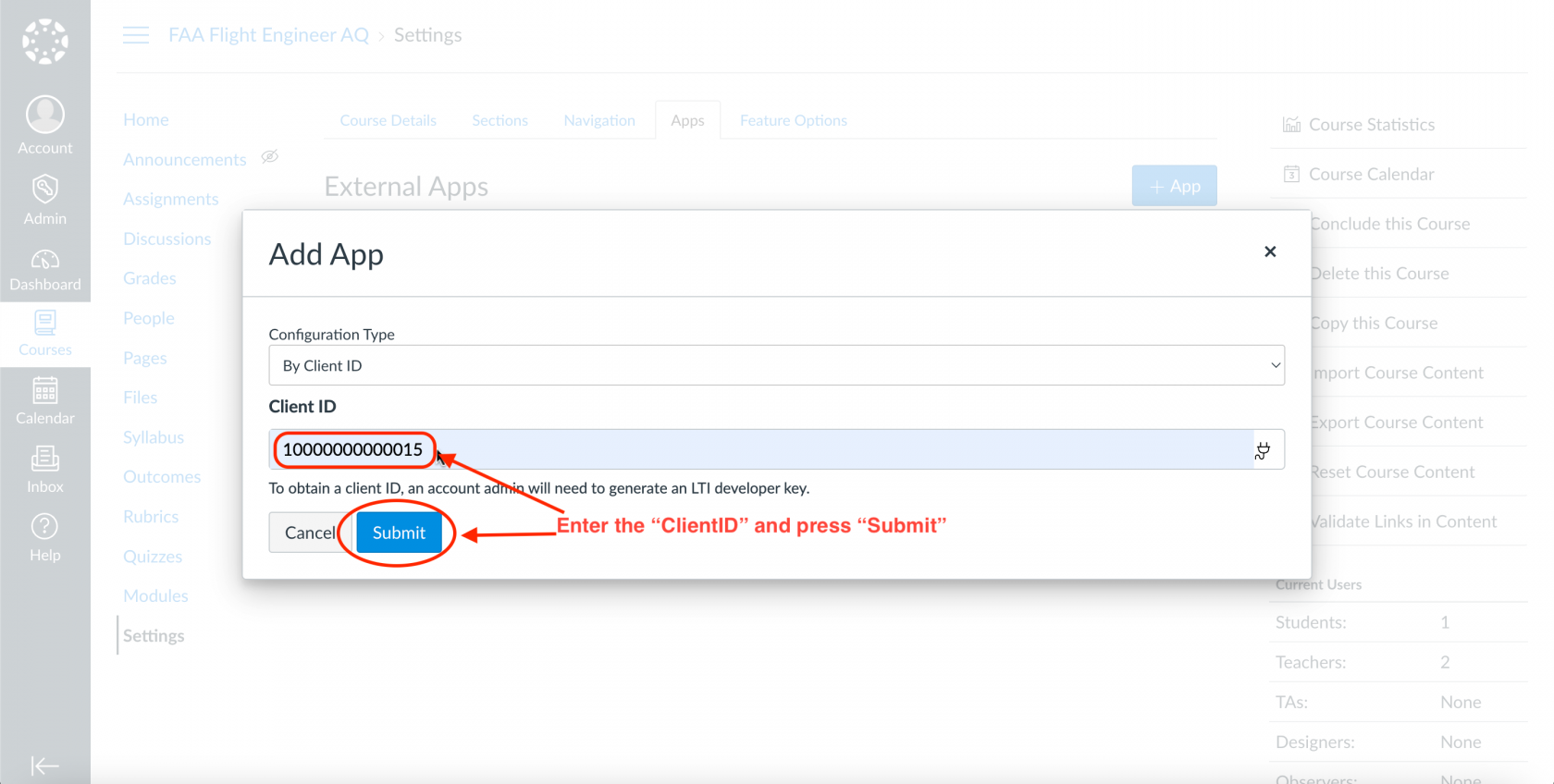
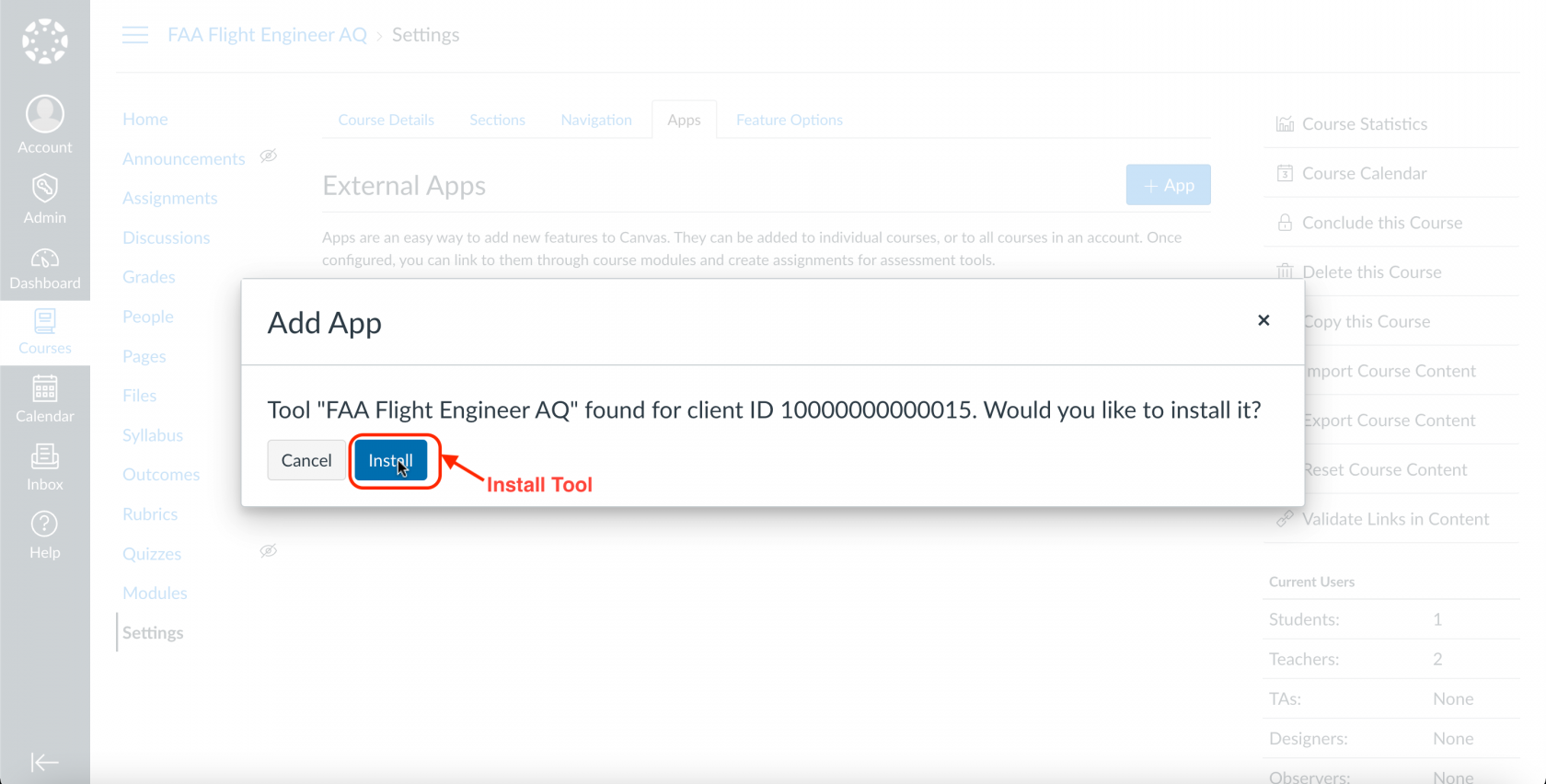
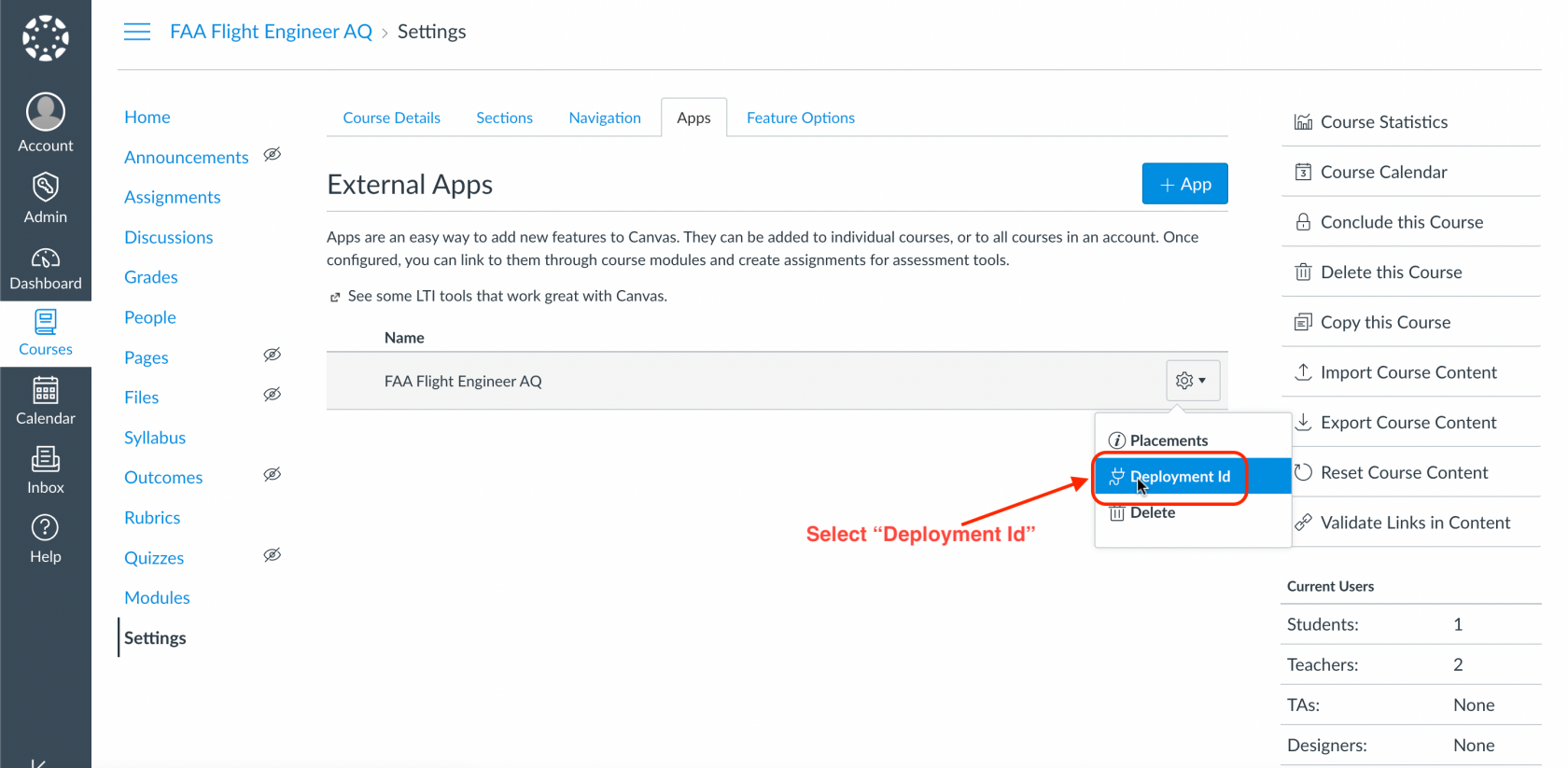
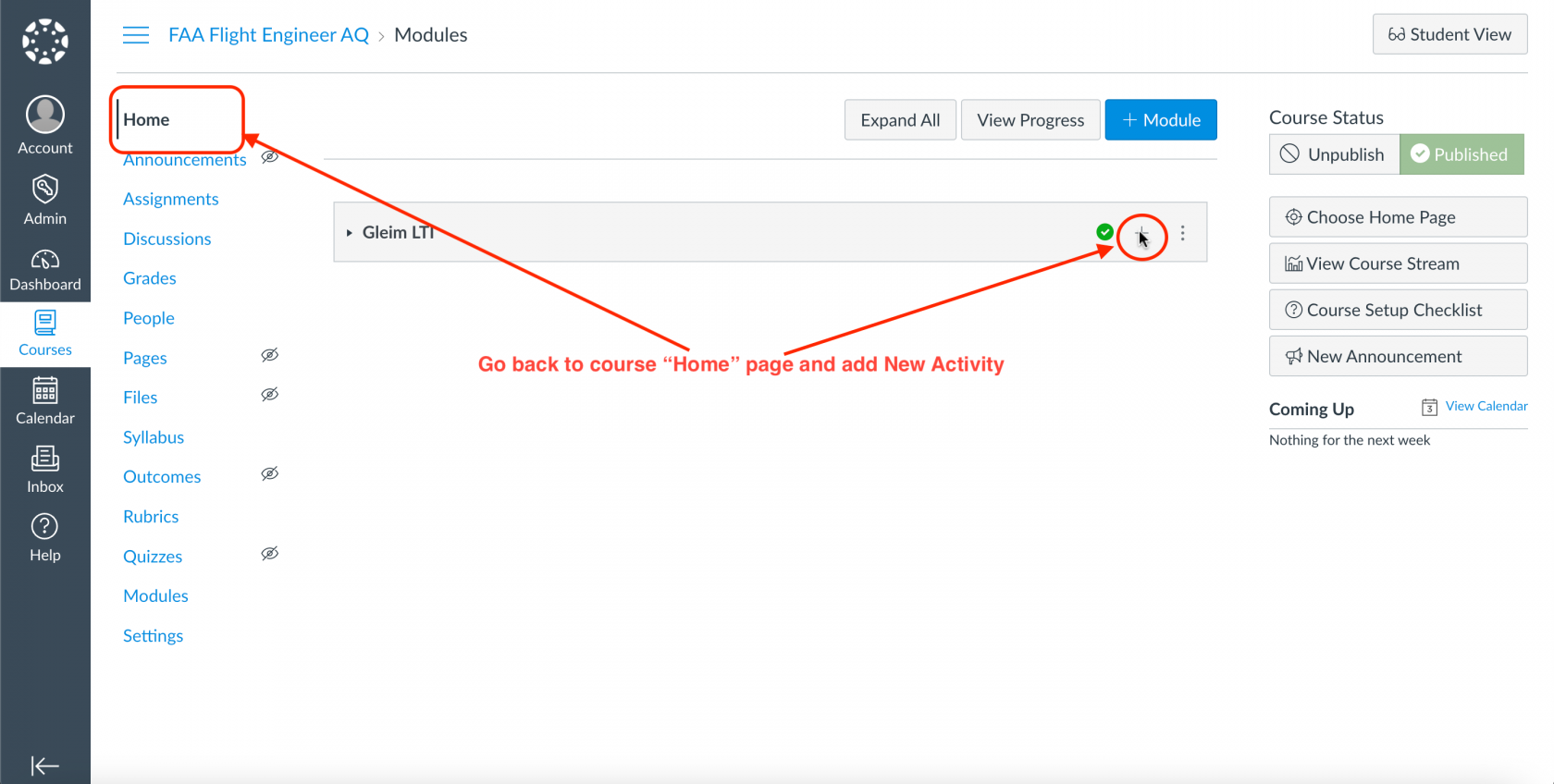
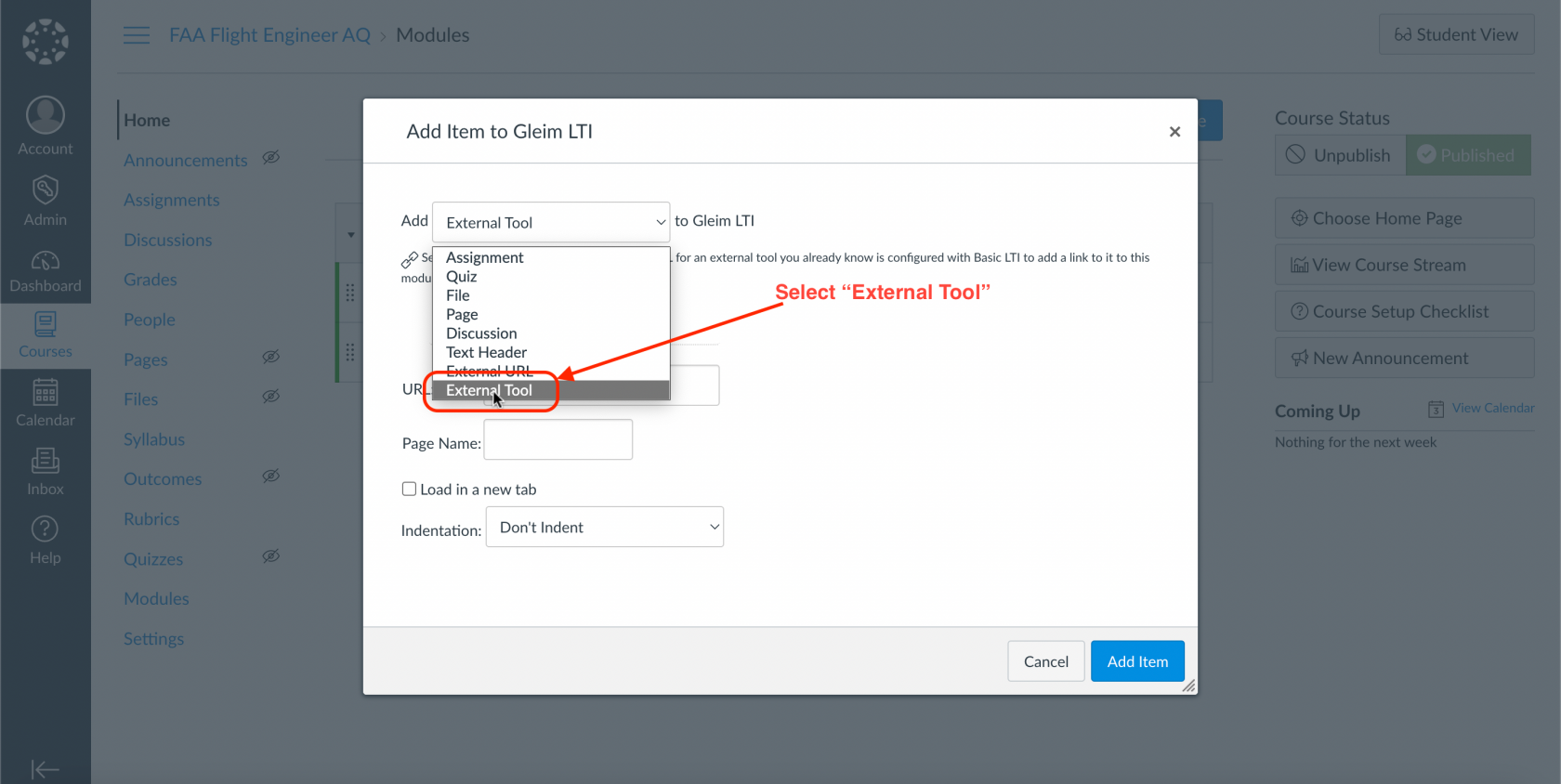
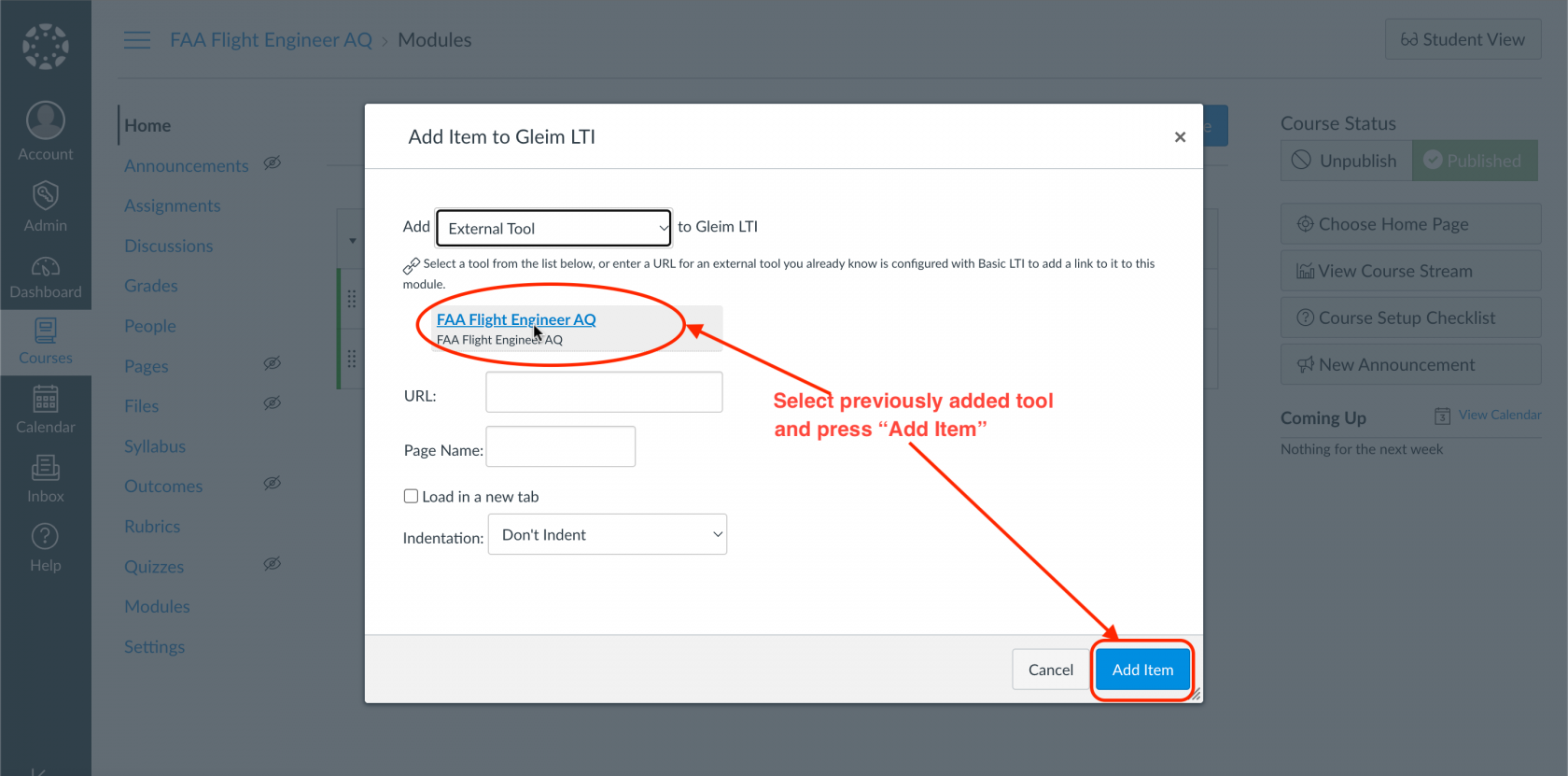
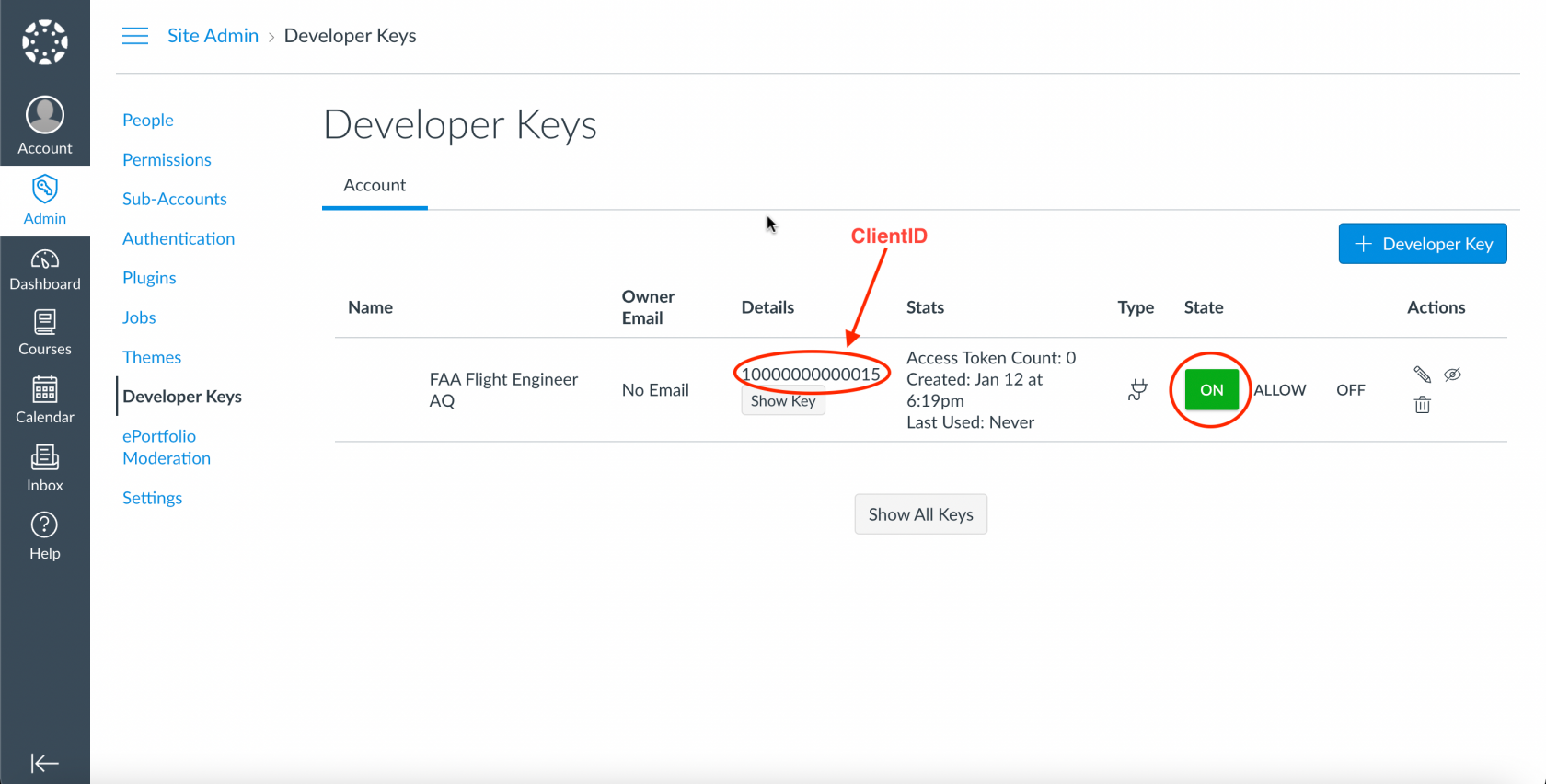
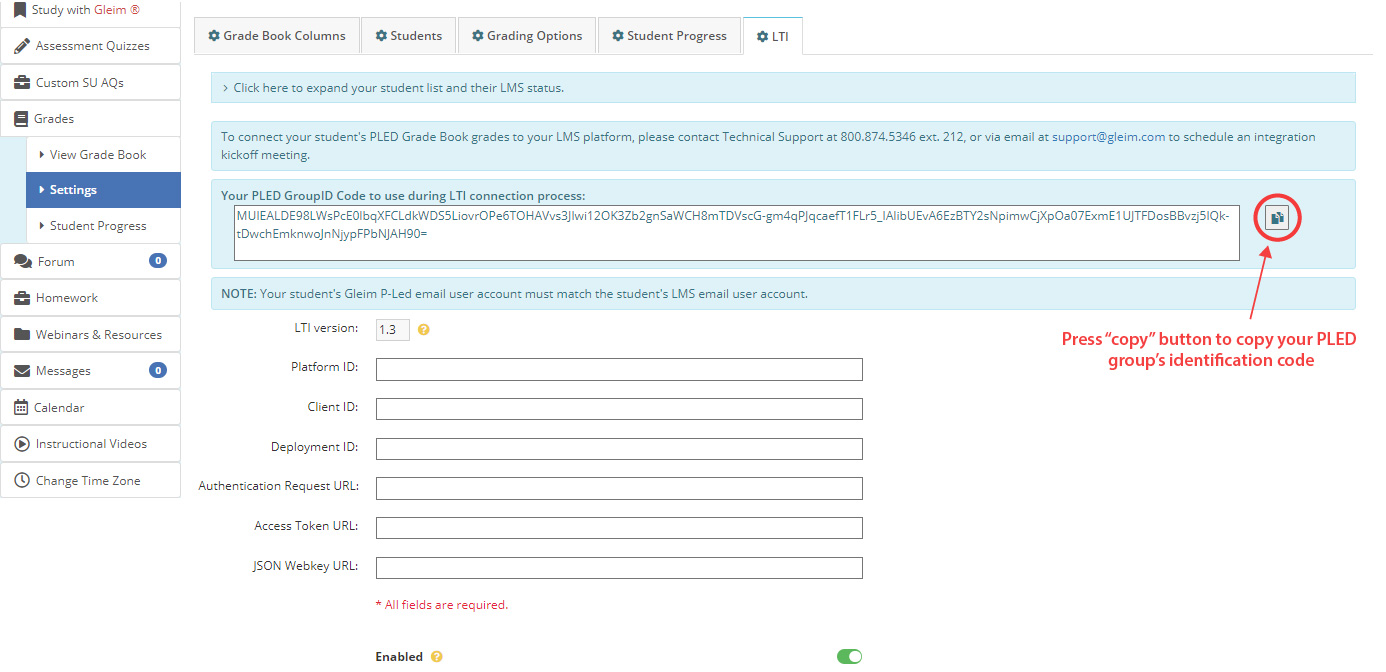
You will need to use the Client ID from the Developer Key created by your administrator (Step 5 of Administrator Instructions) and the Deployment ID from the tool’s settings (Step 13 of Administrator Instructions.)
If you are a returning user with an existing Developer Key, reuse your client ID and all of the other tool configuration values listed below other than the deployment ID.
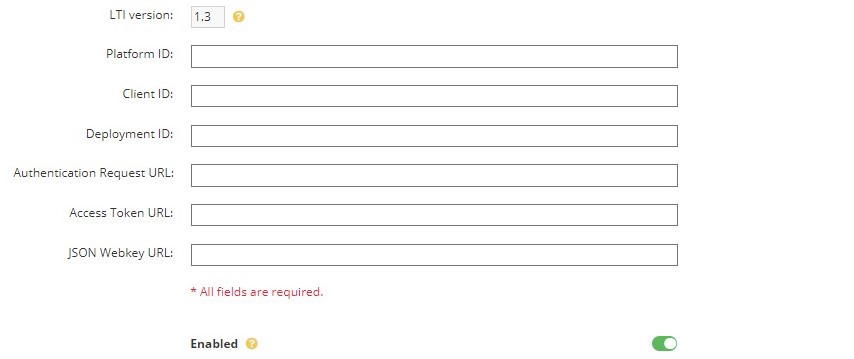
Platform ID: https://canvas.instructure.com
Client ID: Your client ID from the LMS integration setup.
Deployment ID: Your deployment ID from the LMS integration setup
Authentication Request URL: https://your_LMS_host/api/lti/authorize_redirect
Access Token URL: https://your_LMS_host/login/oauth2/token
JSON Web Key URL: https://your_LMS_host/api/lti/security/jwks
Ensure that the LTI tab is set to “Enabled.” Click the “Save Settings” button once the information has been entered.
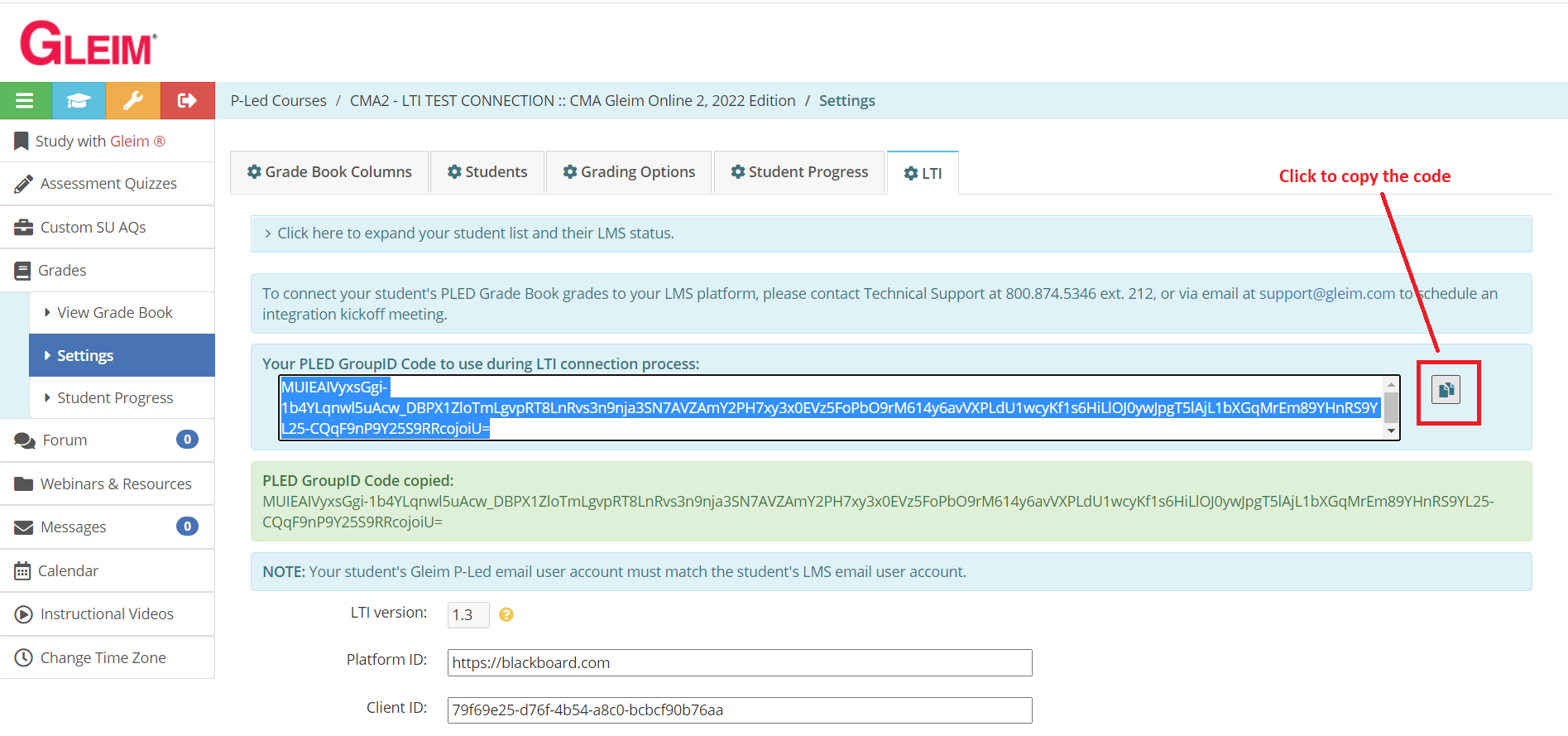
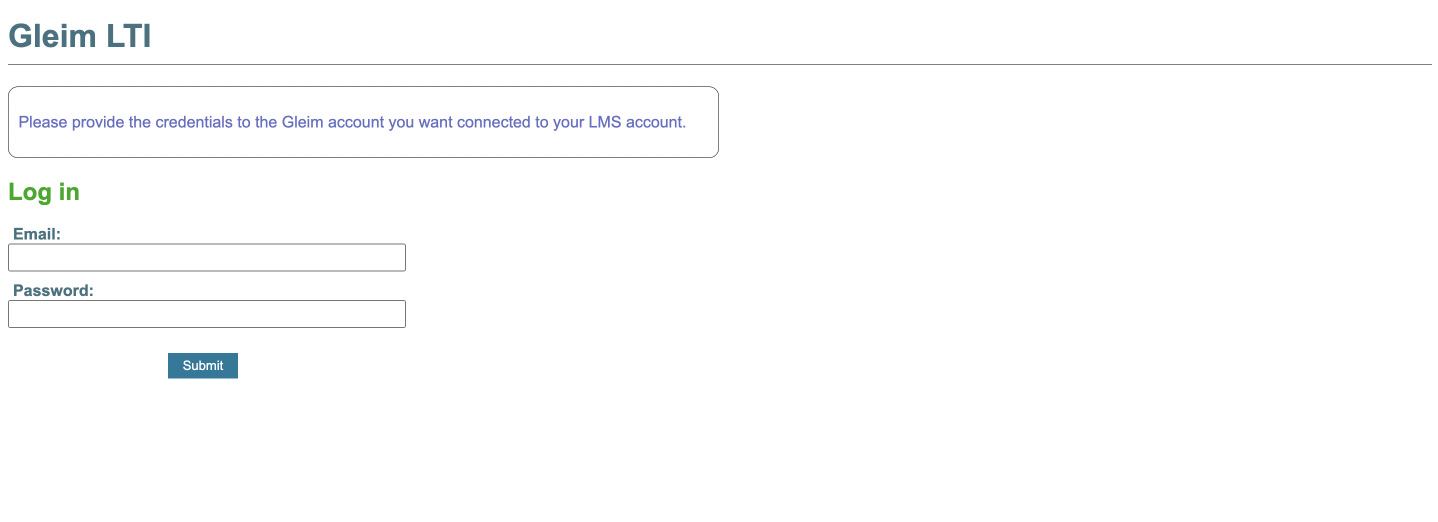
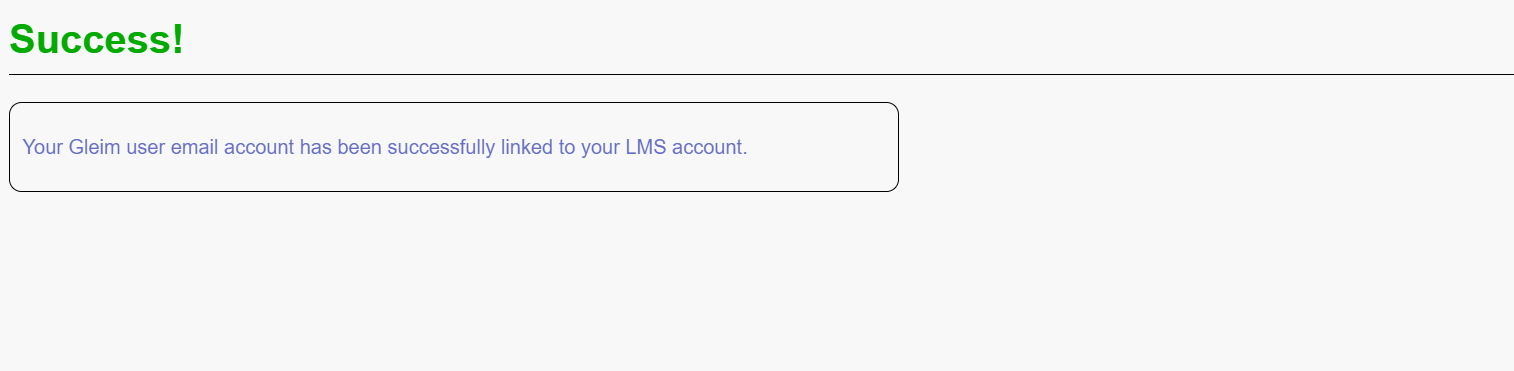
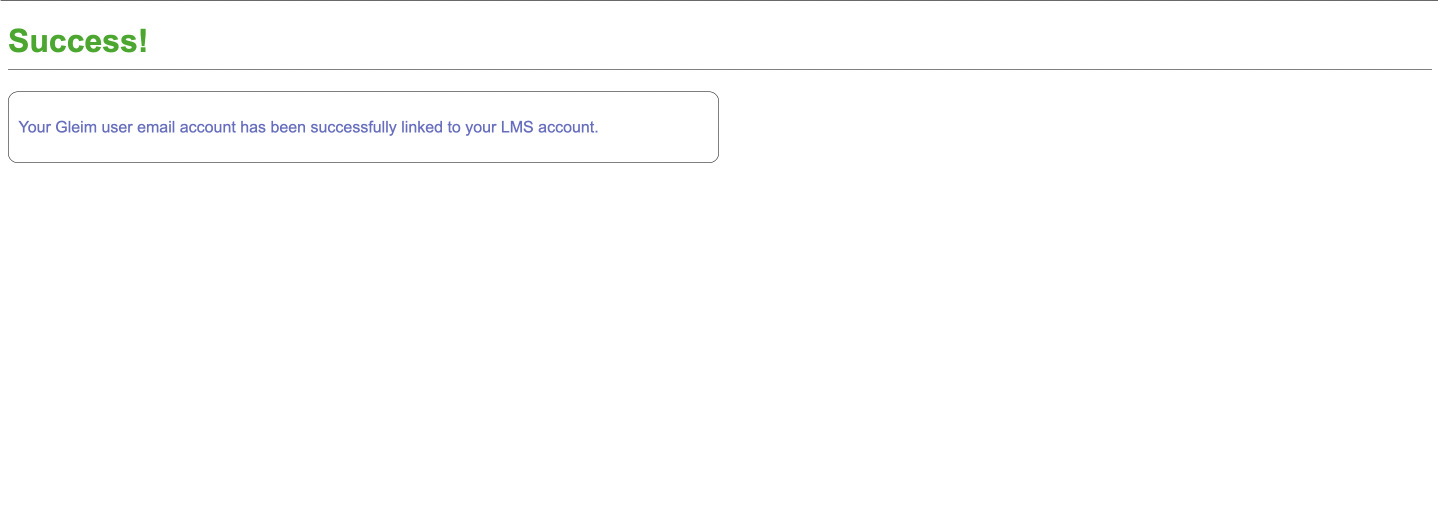
You should then see a green “Success!” message. You will not need to repeat this step unless you join a different P-Led group.
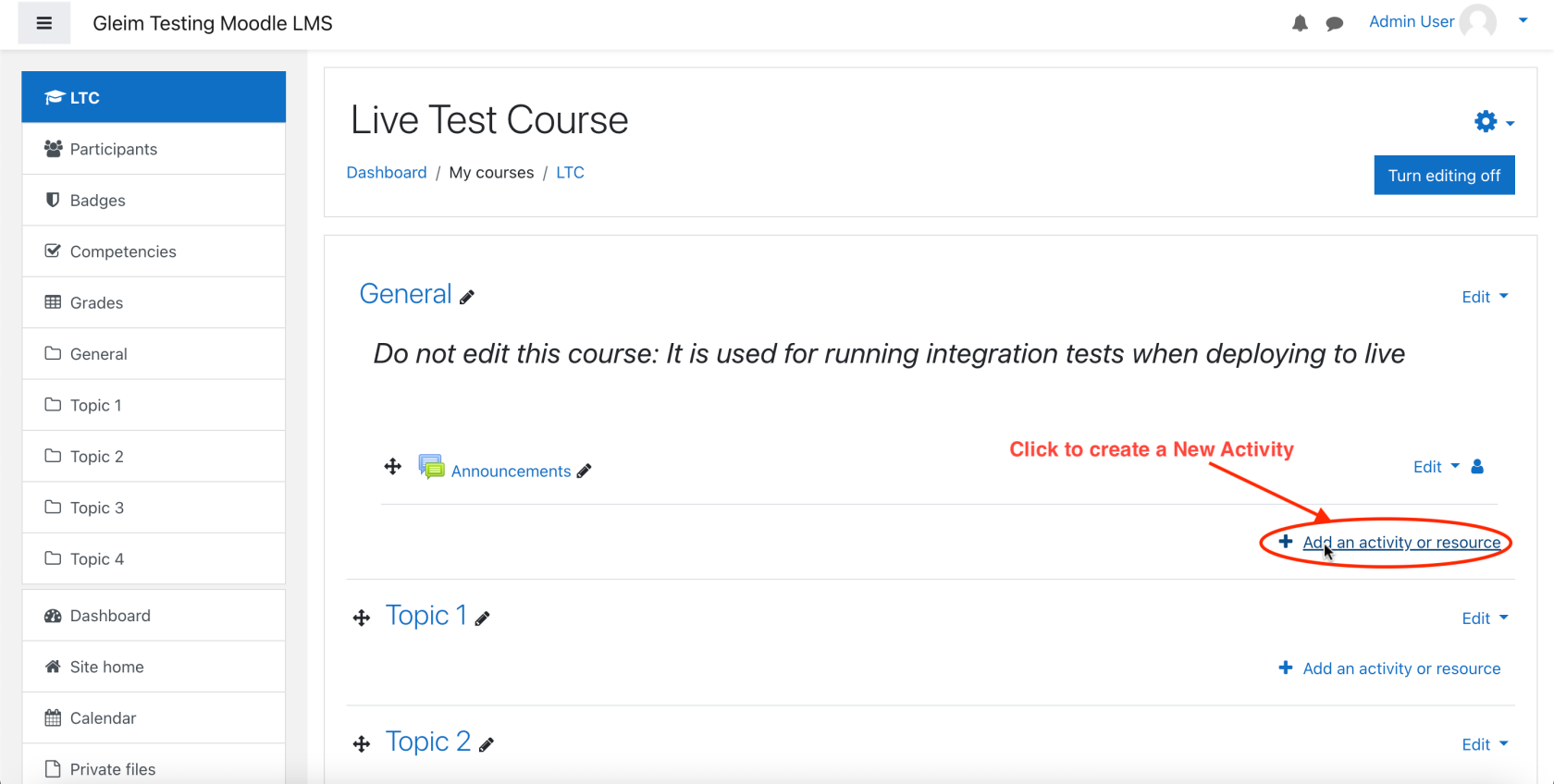
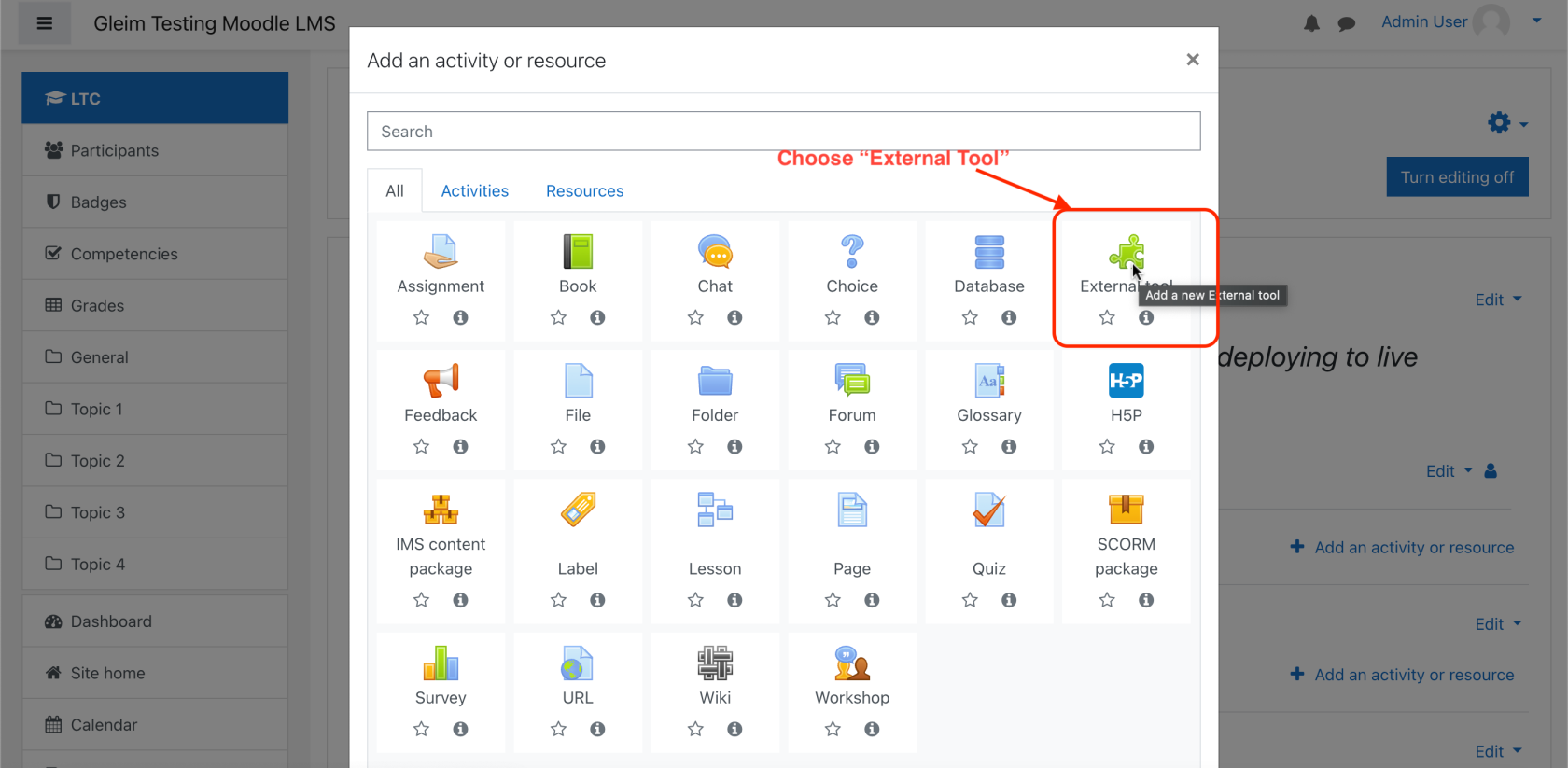
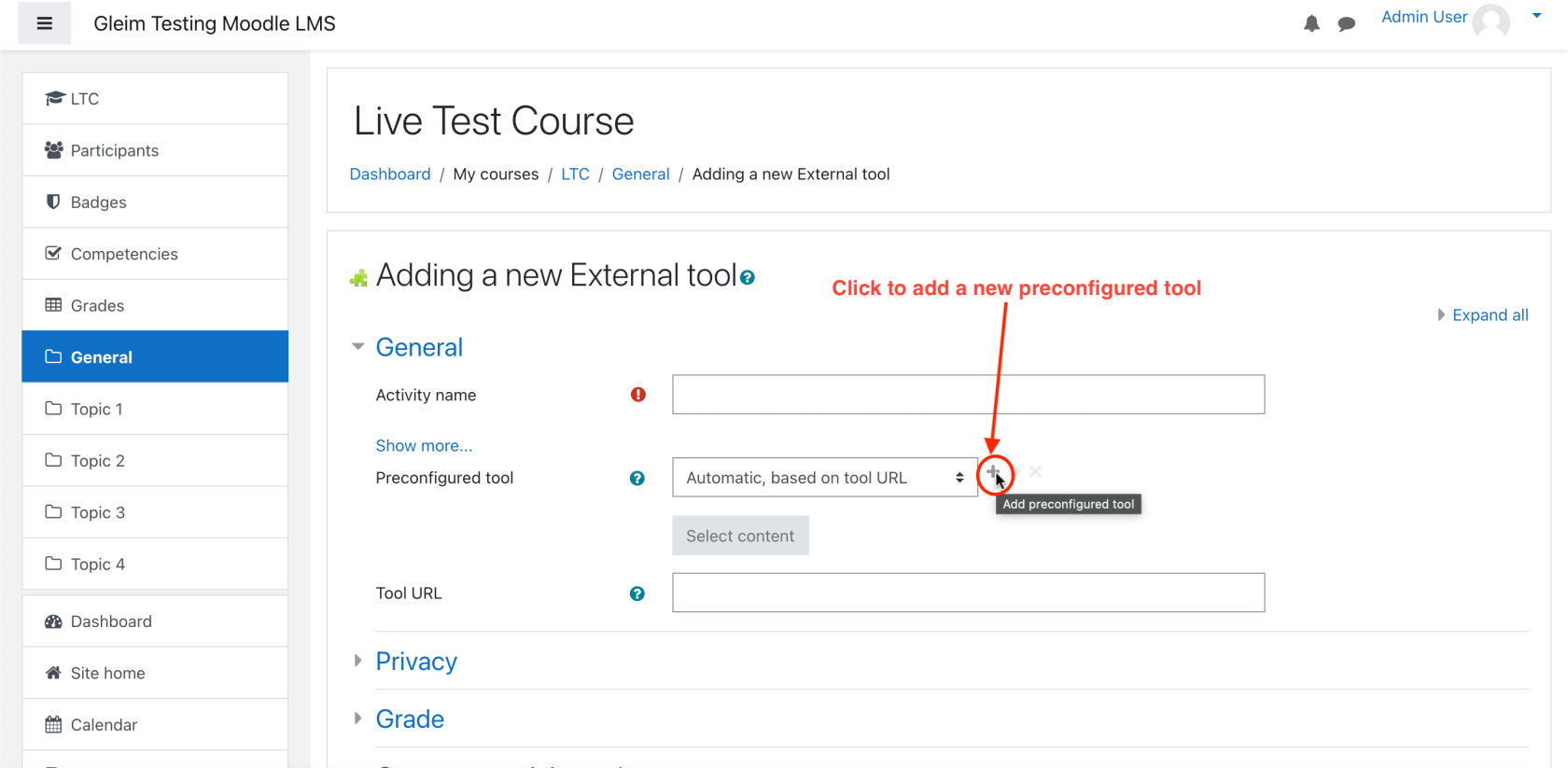
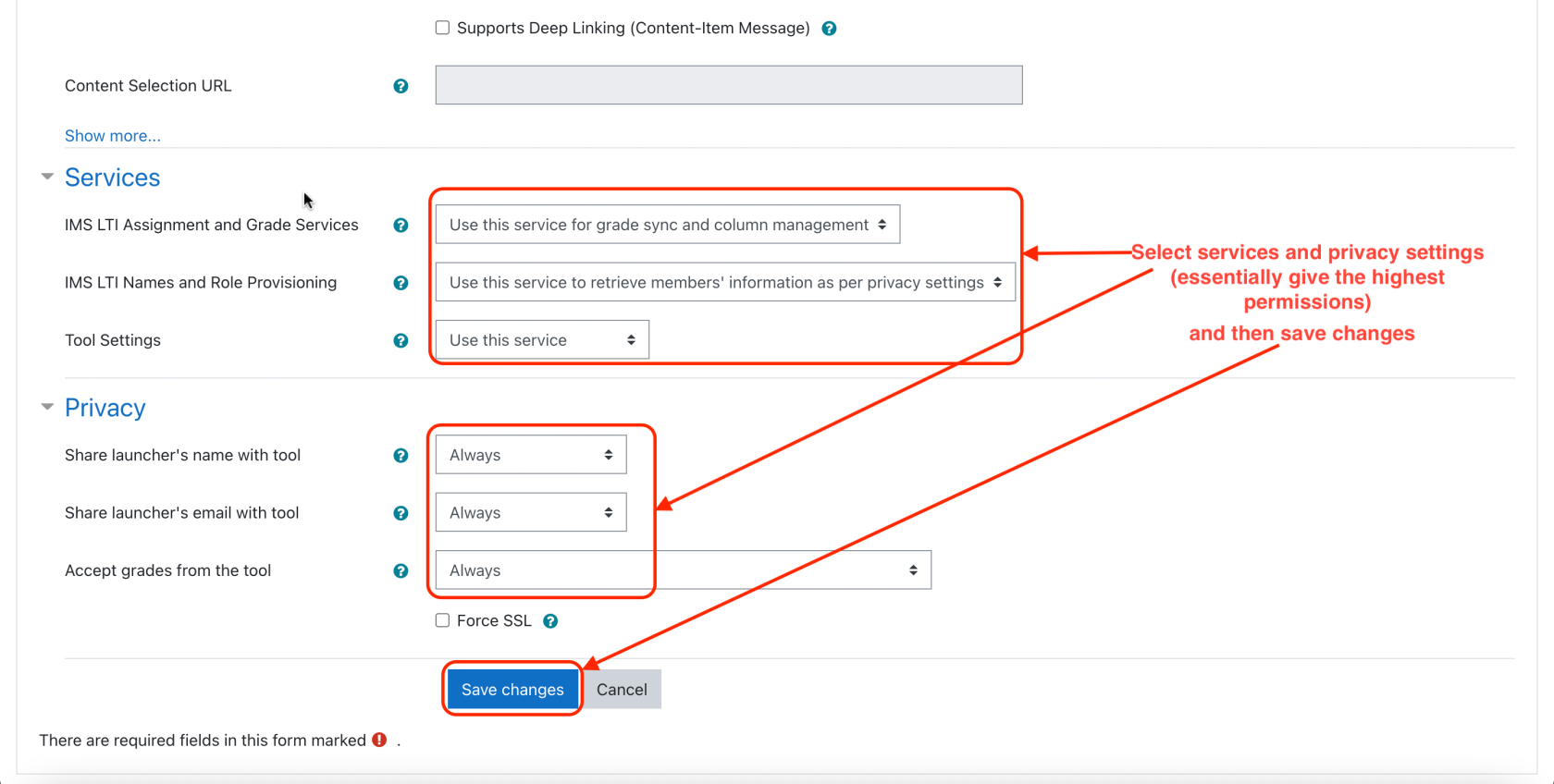
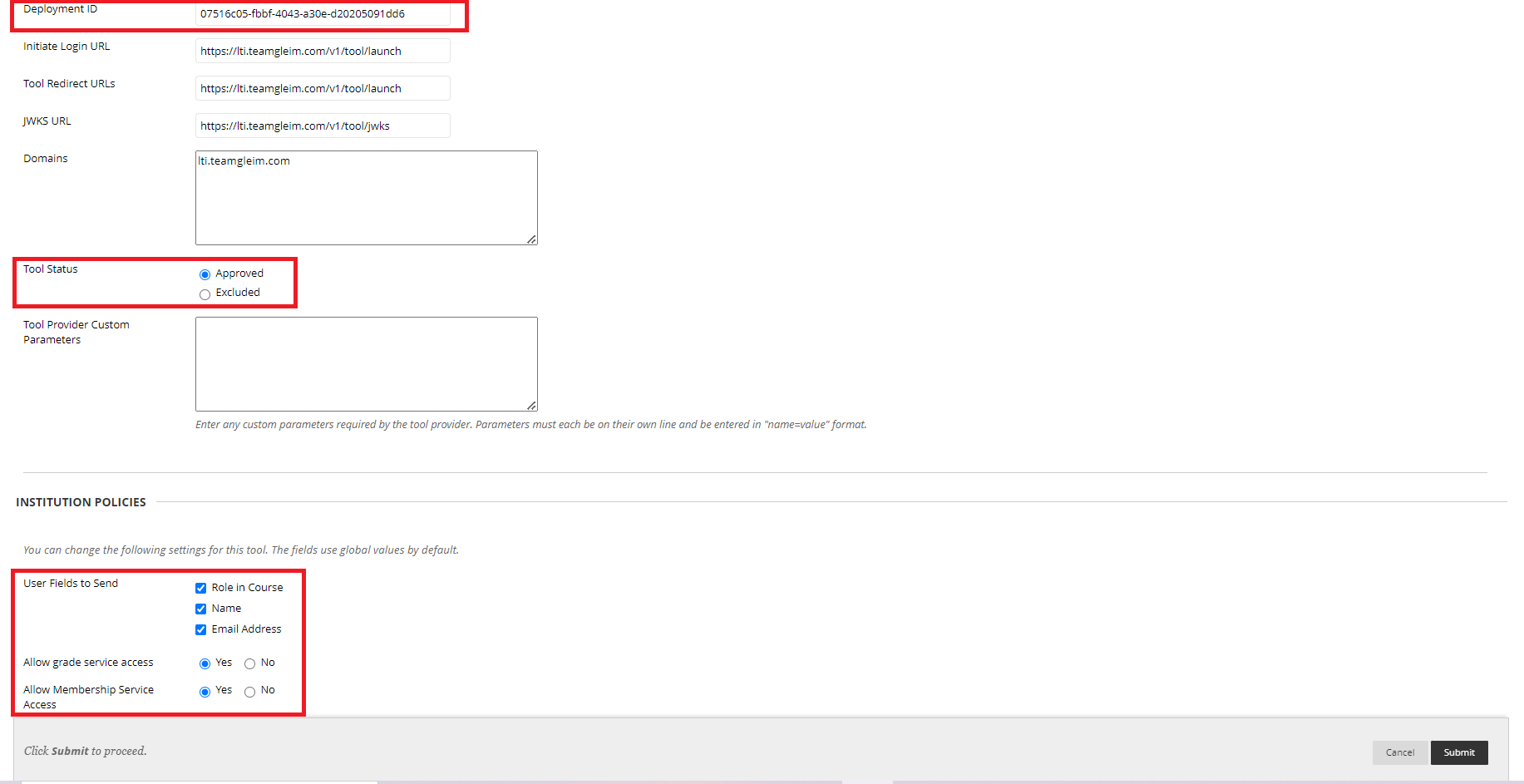
Live LTI Integration Testshttps://lti.teamgleim.comhttps://lti.teamgleim.com/v1/tool/jwkshttps://lti.teamgleim.com/v1/tool/launchhttps://lti.teamgleim.com/v1/tool/launch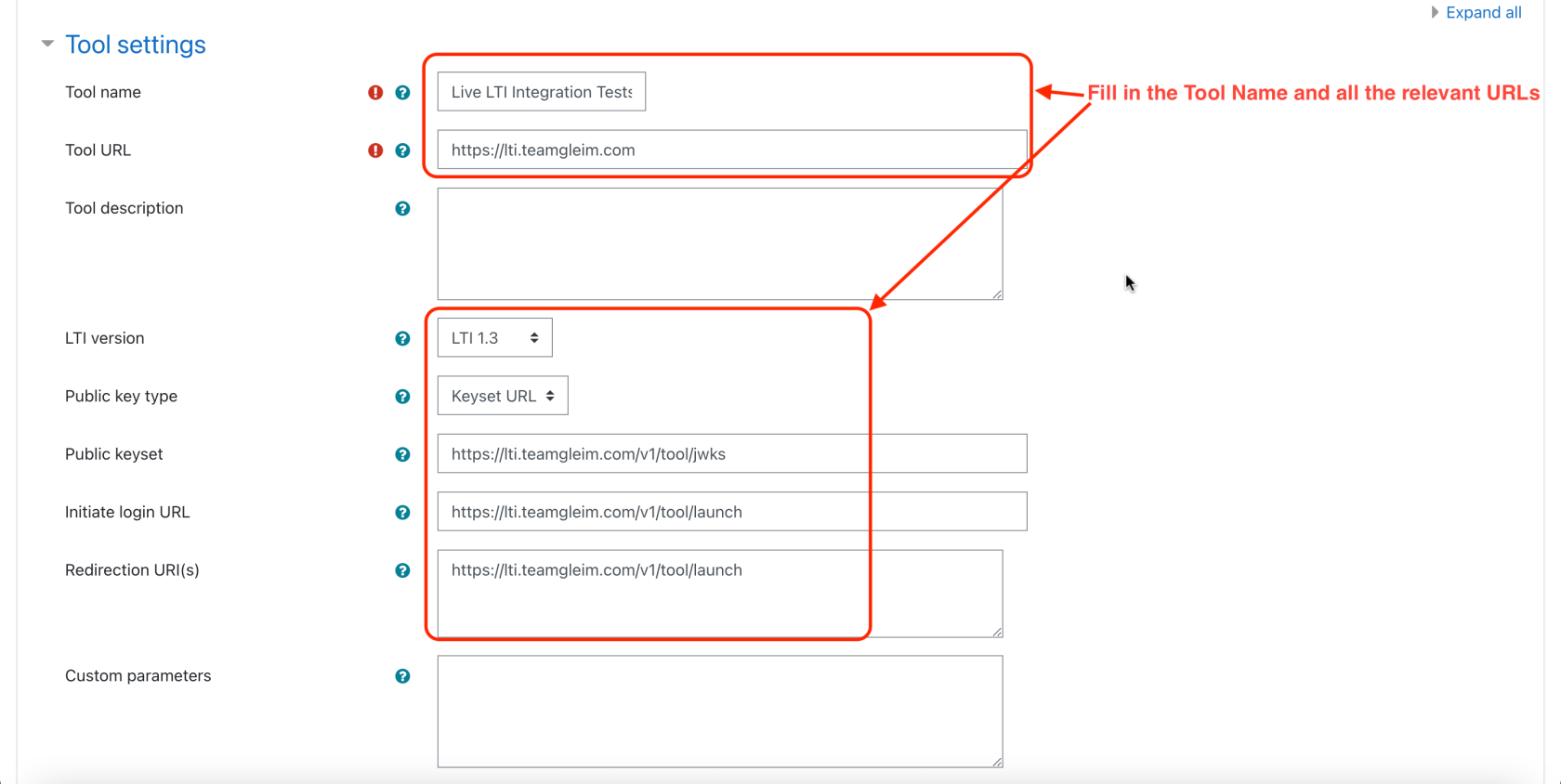
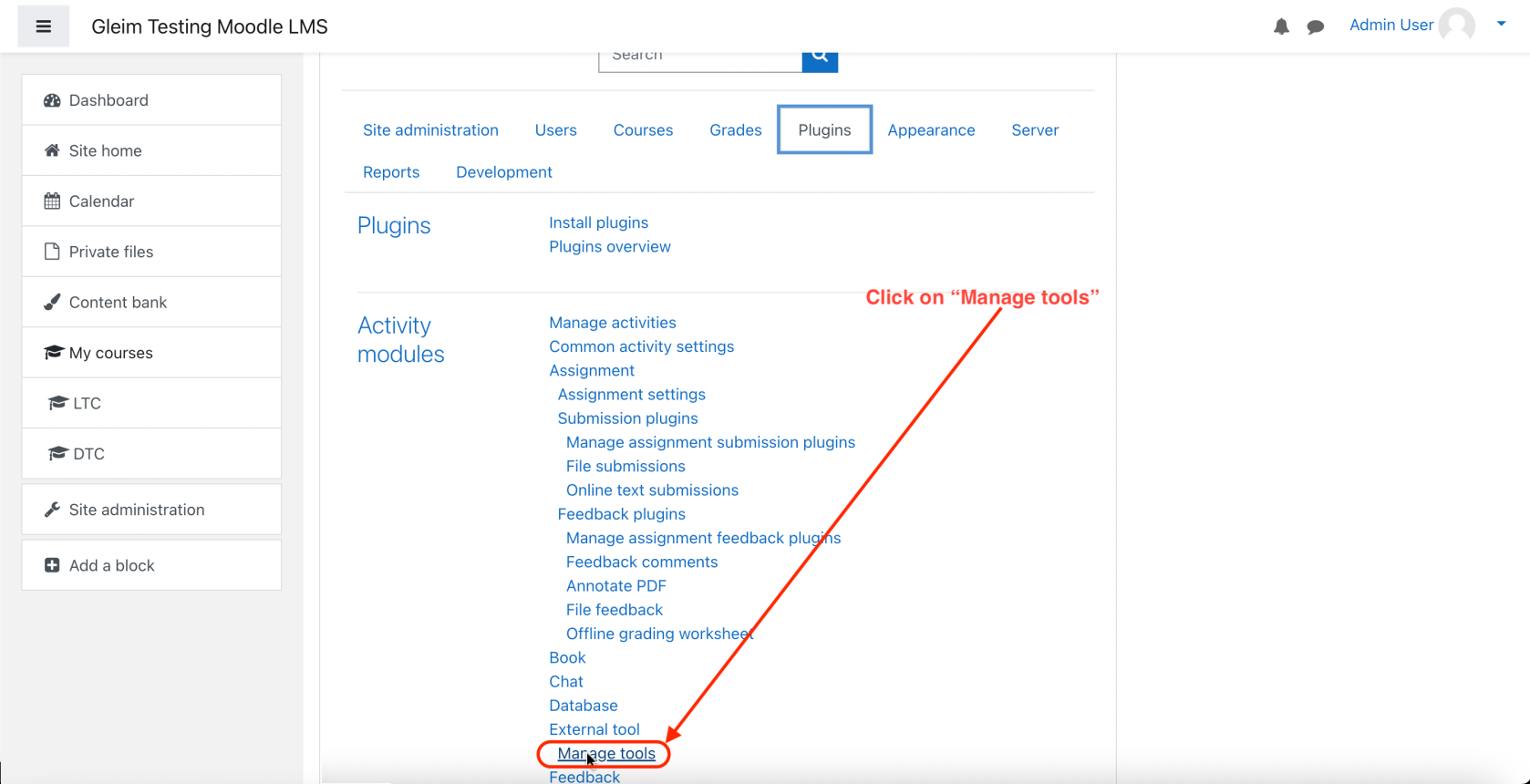
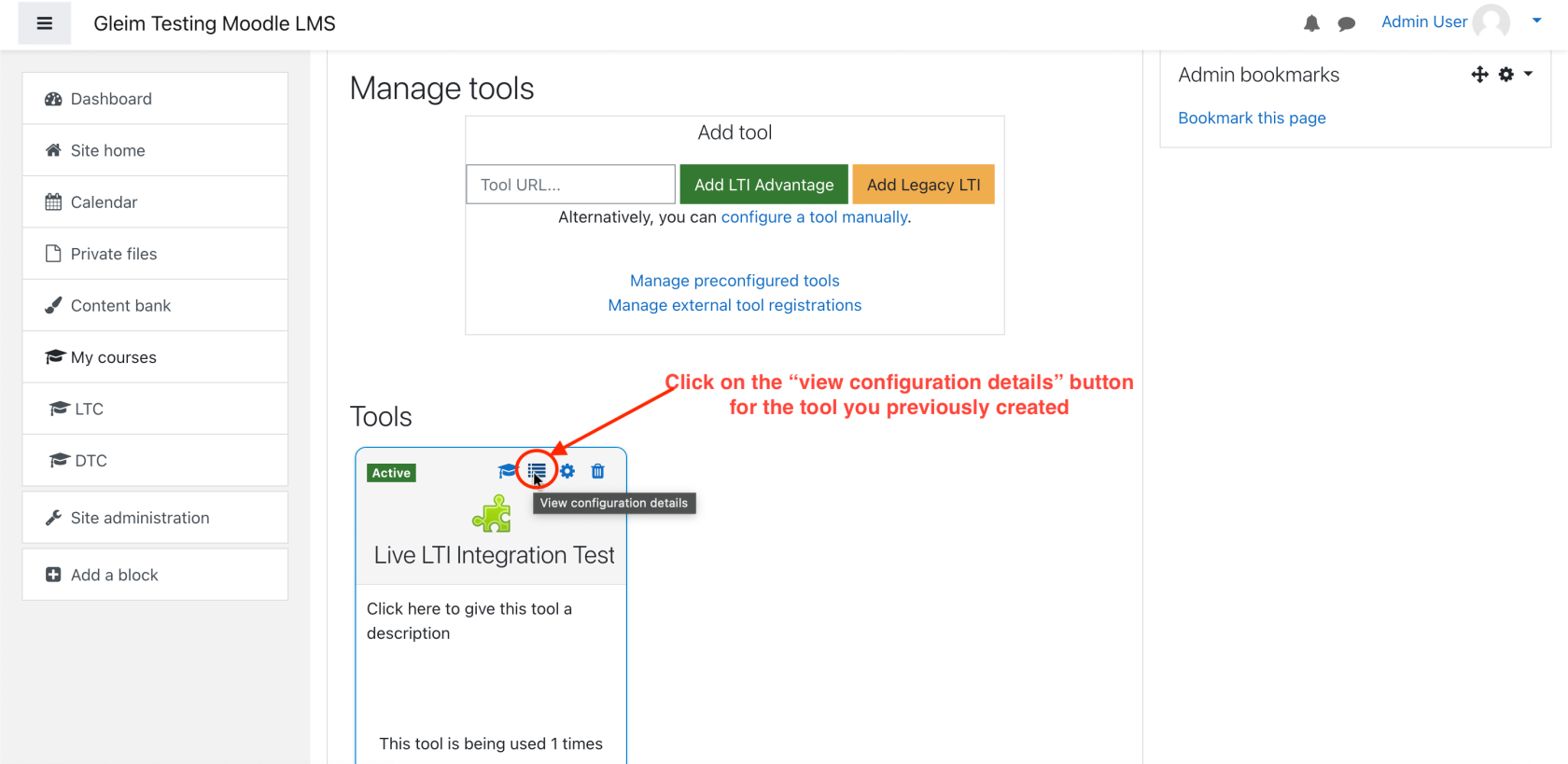
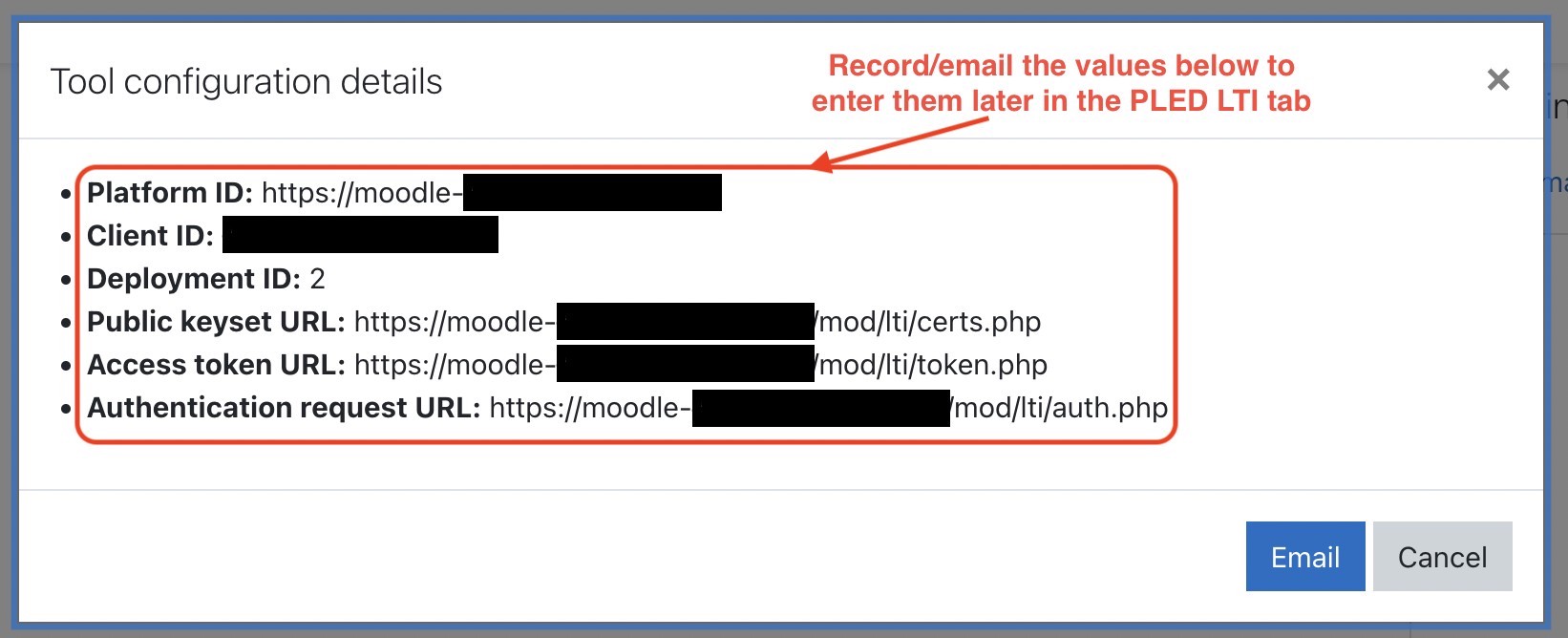
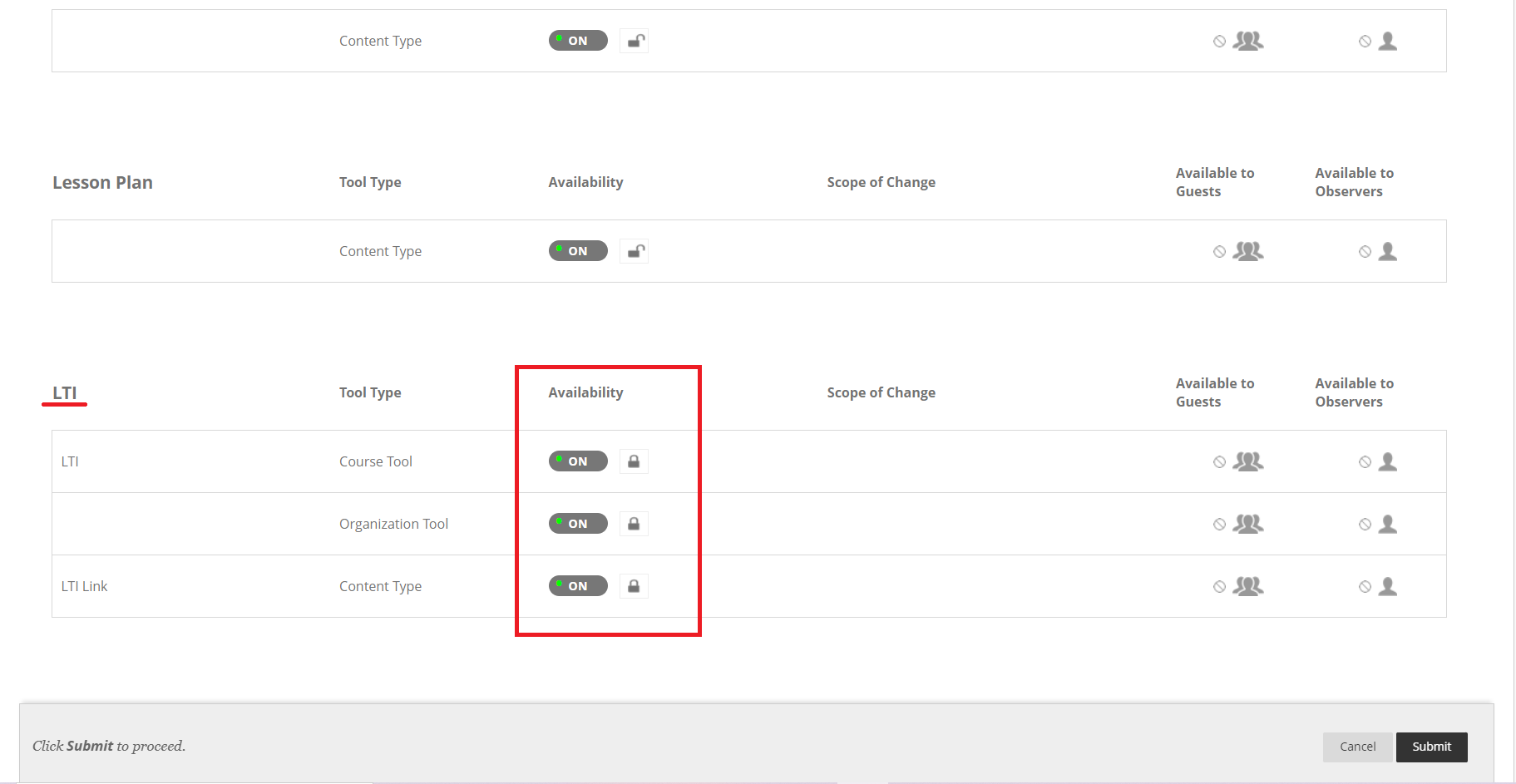
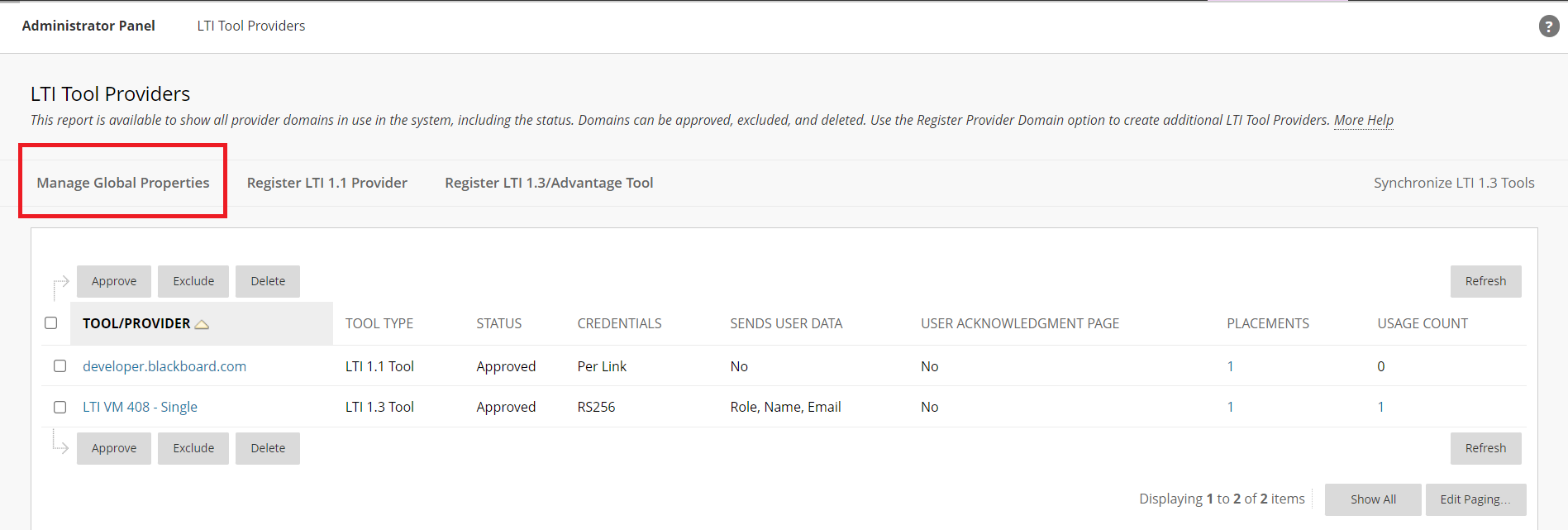
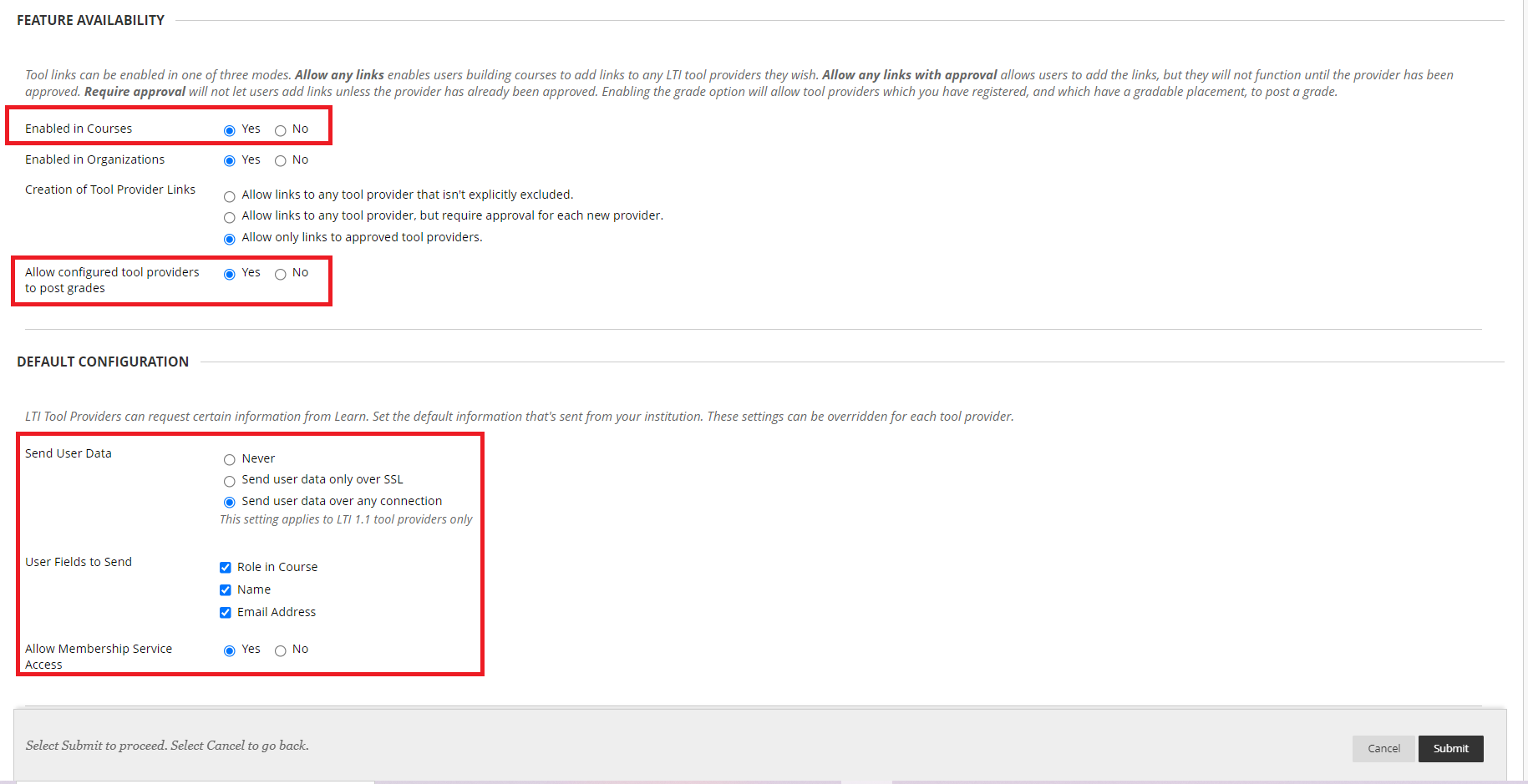
Feature Availability
Default Configuration
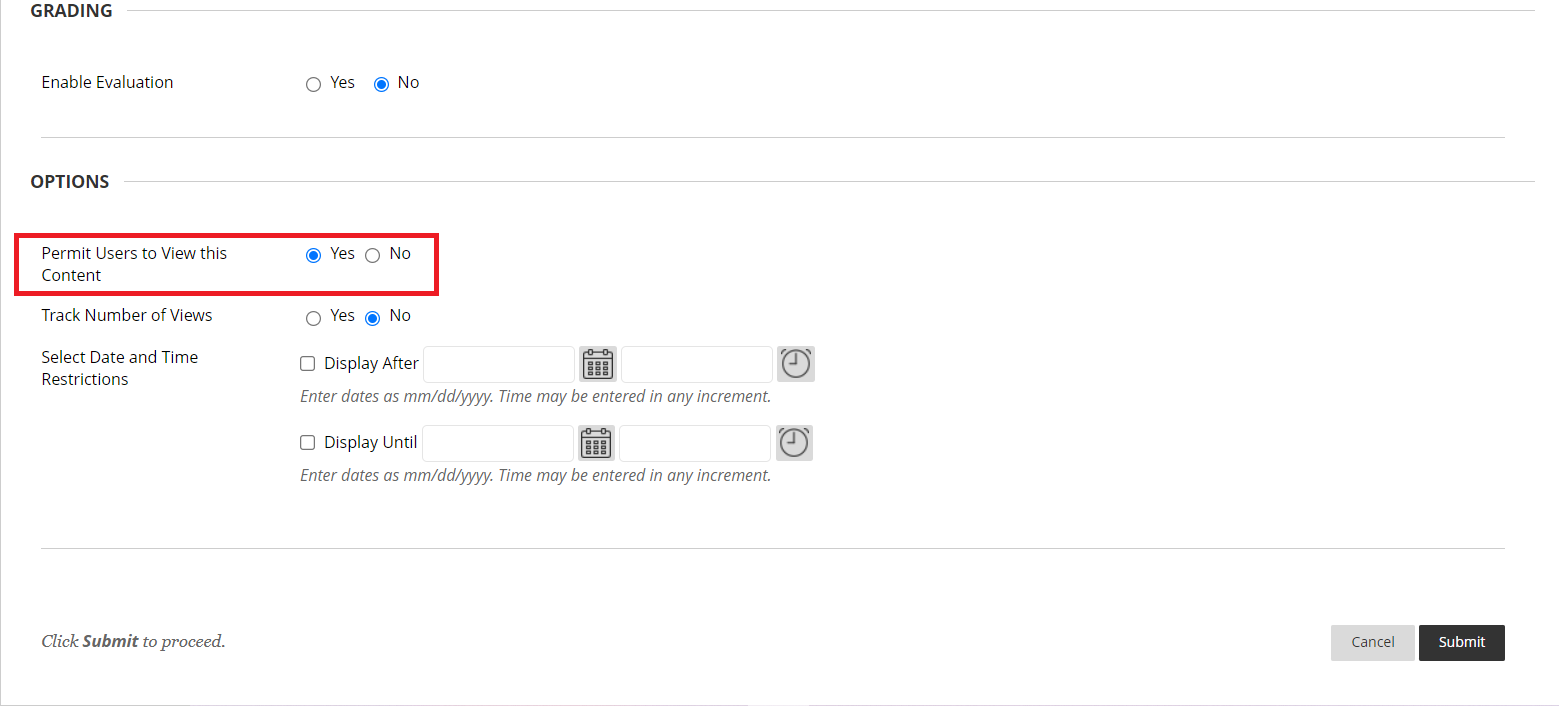
Confirm the above settings. If you change any settings, make sure to press the “Submit” button. If not, click “Cancel.”
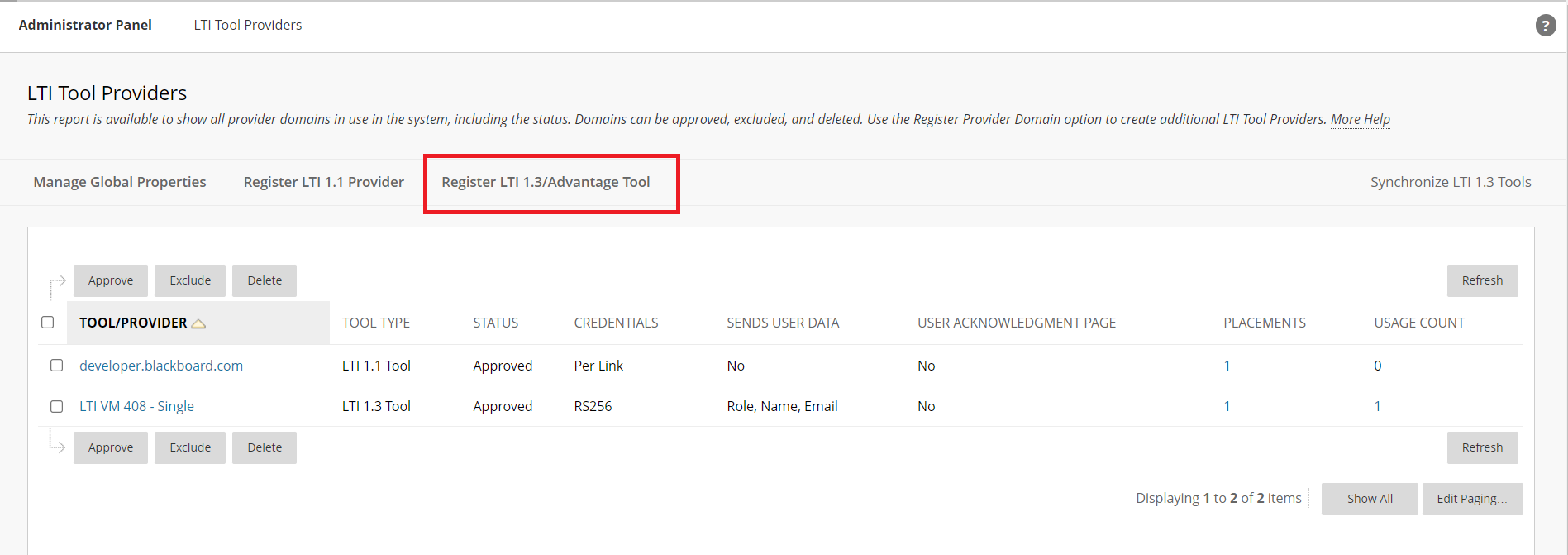
2b21b20a-6476-4c73-aac1-cfbeb3745e2e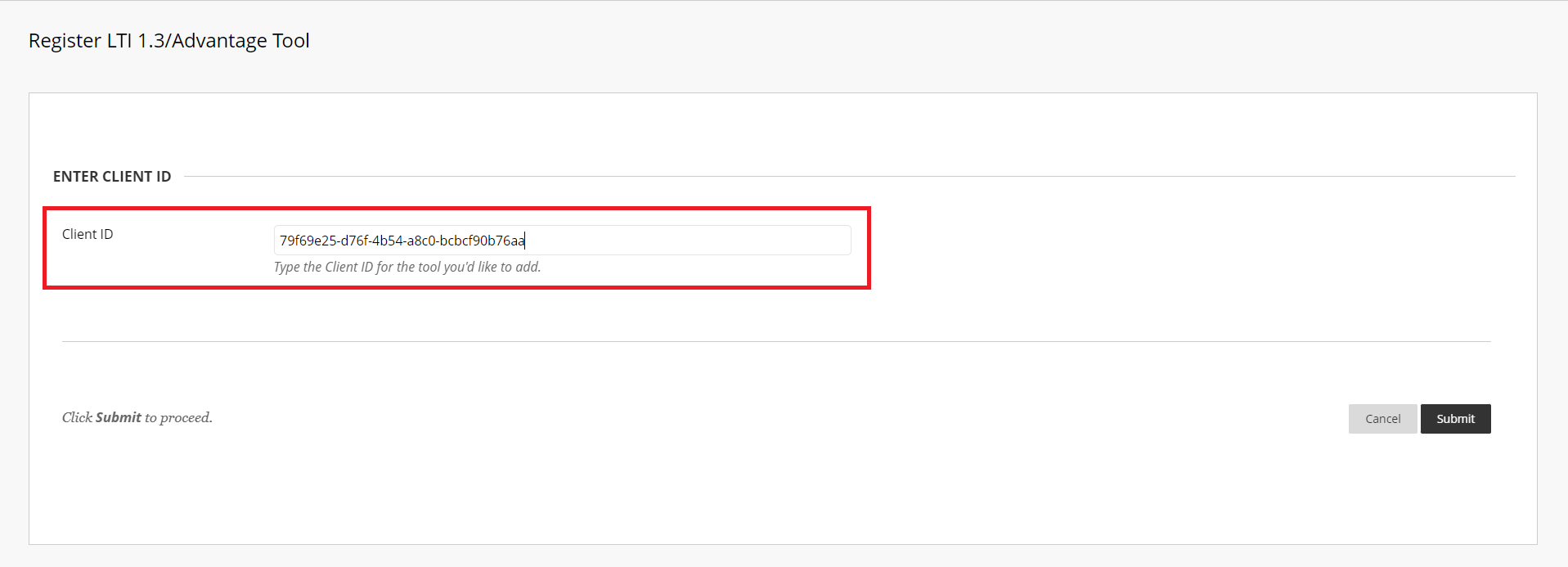
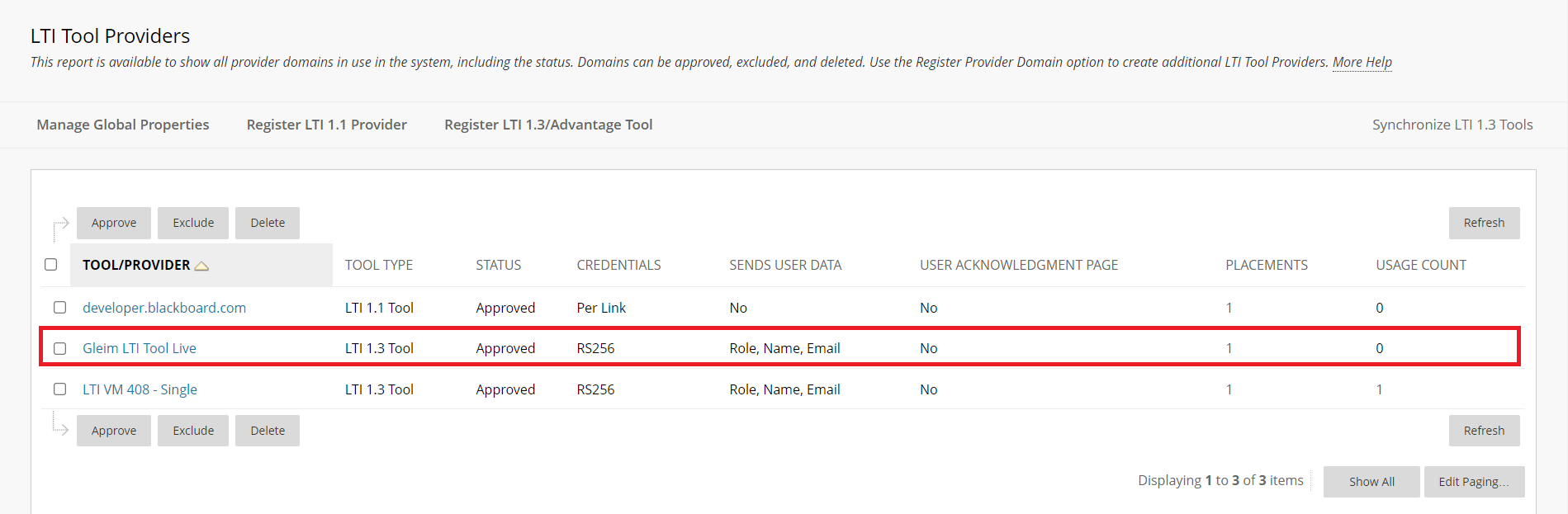
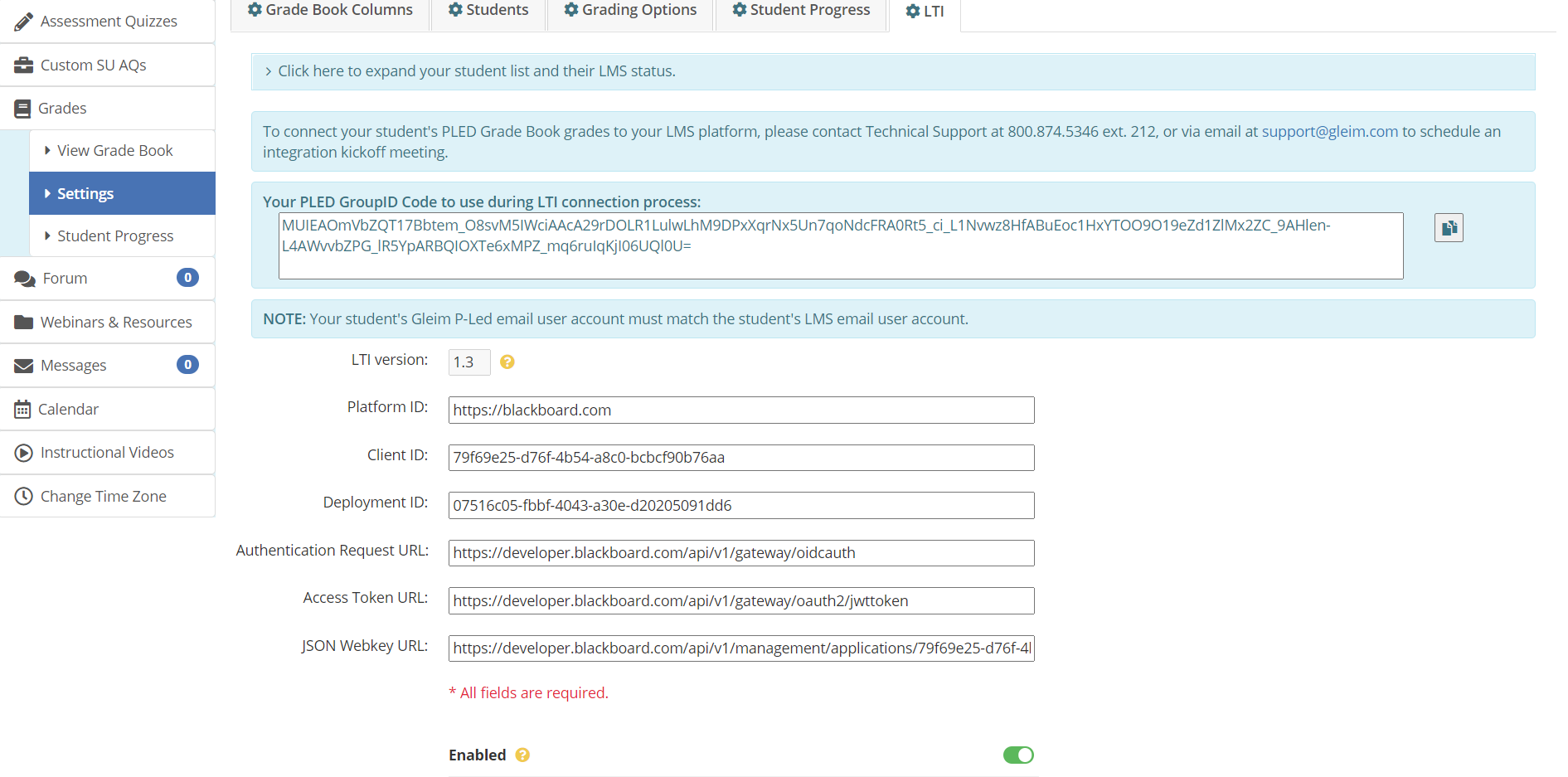
Platform ID: https://blackboard.com
Client ID: 2b21b20a-6476-4c73-aac1-cfbeb3745e2e
Authentication Request URL: https://developer.blackboard.com/api/v1/gateway/oidcauth
Access Token URL: https://developer.blackboard.com/api/v1/gateway/oauth2/jwttoken
JSON Web Key URL: https://developer.blackboard.com/api/v1/management/applications/2b21b20a-6476-4c73-aac1-cfbeb3745e2e/jwks.json
Enabled: ON
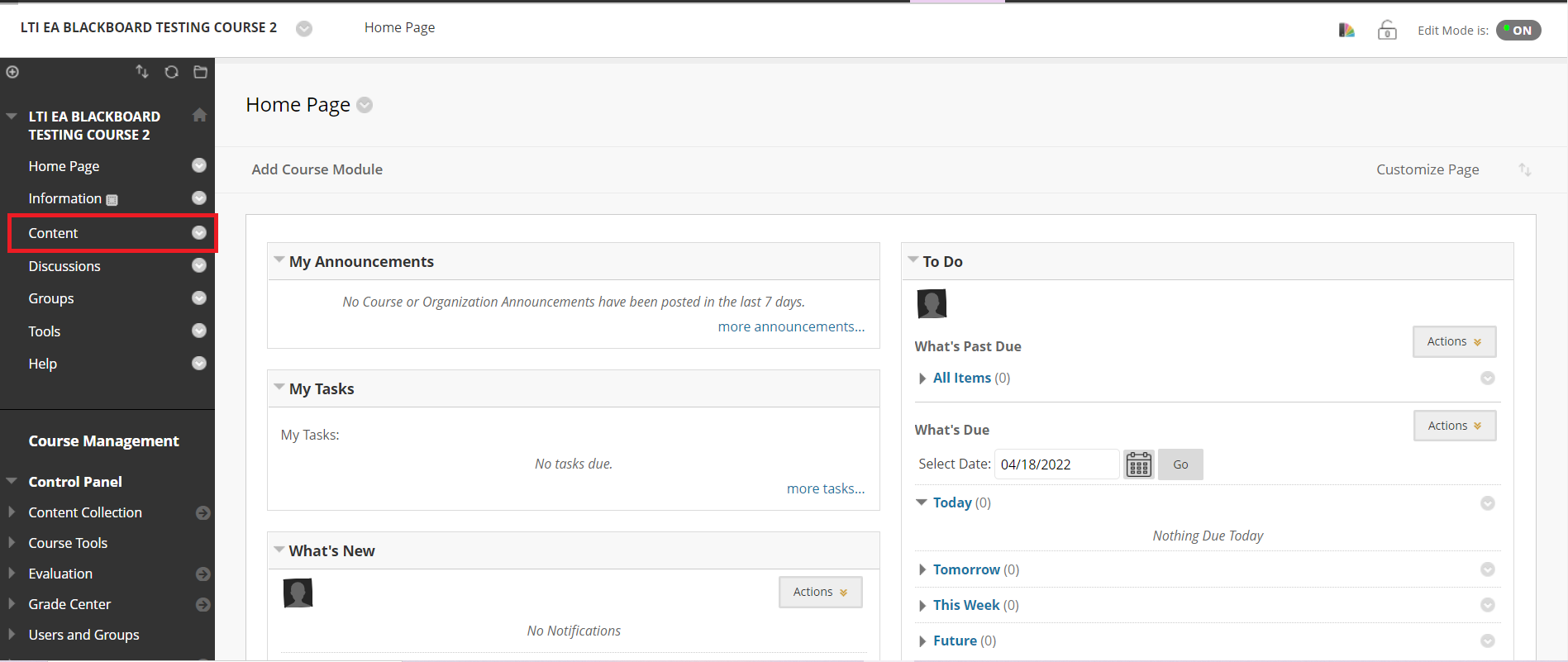
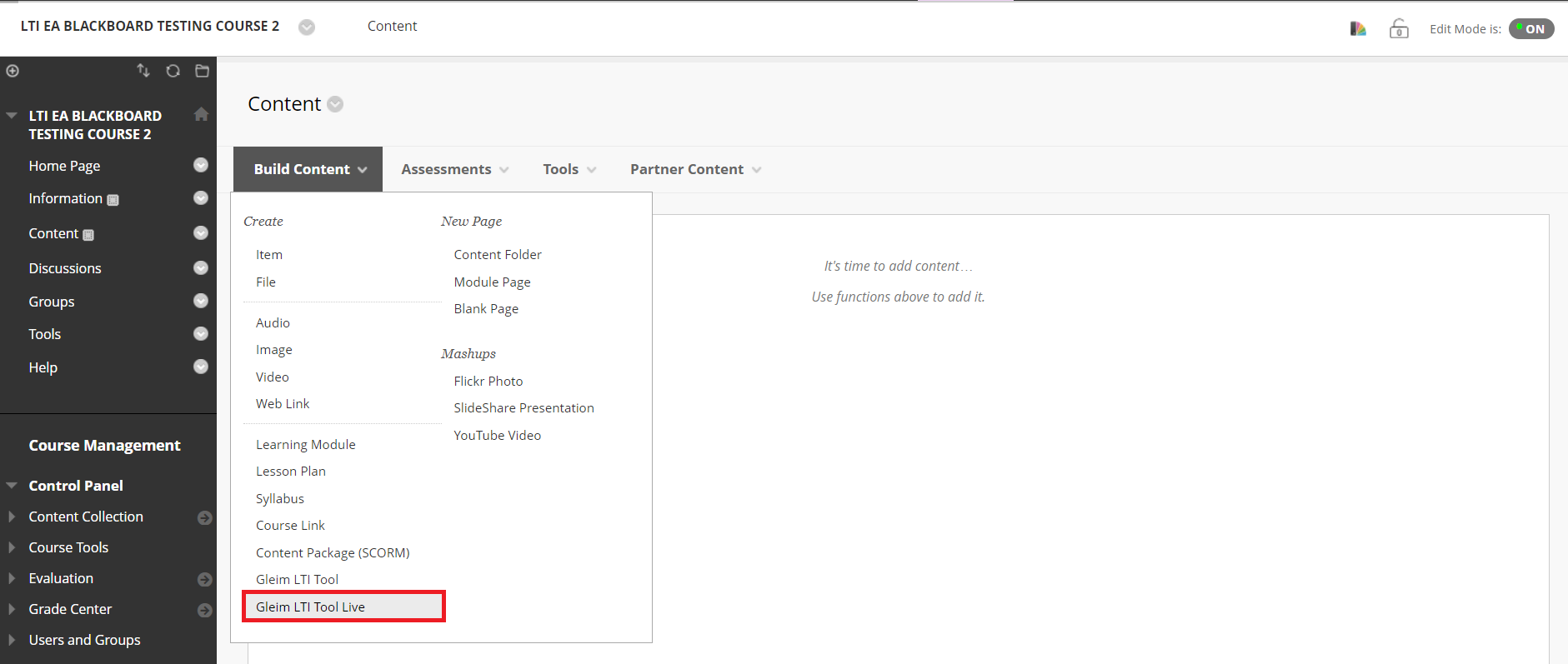
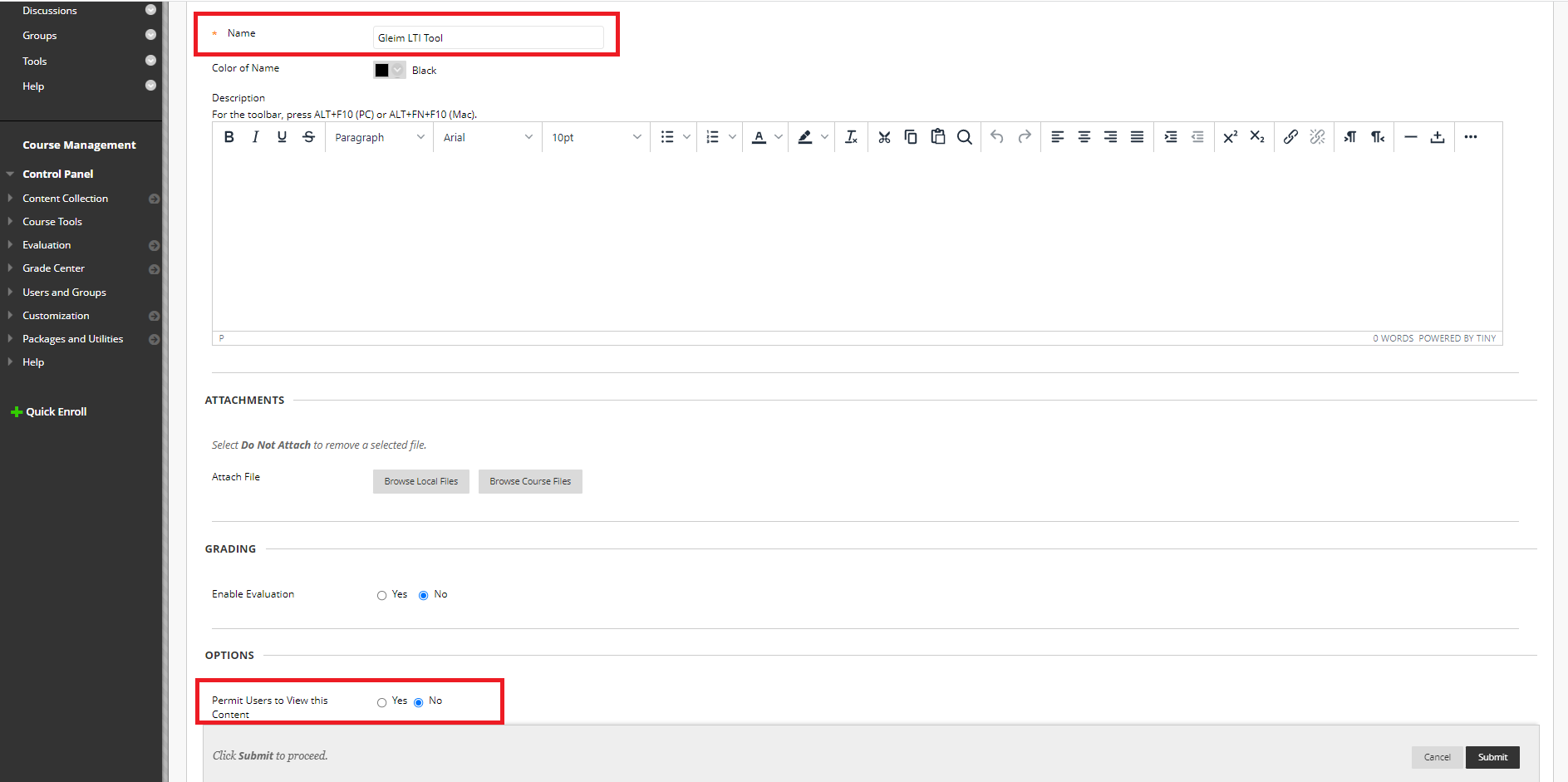
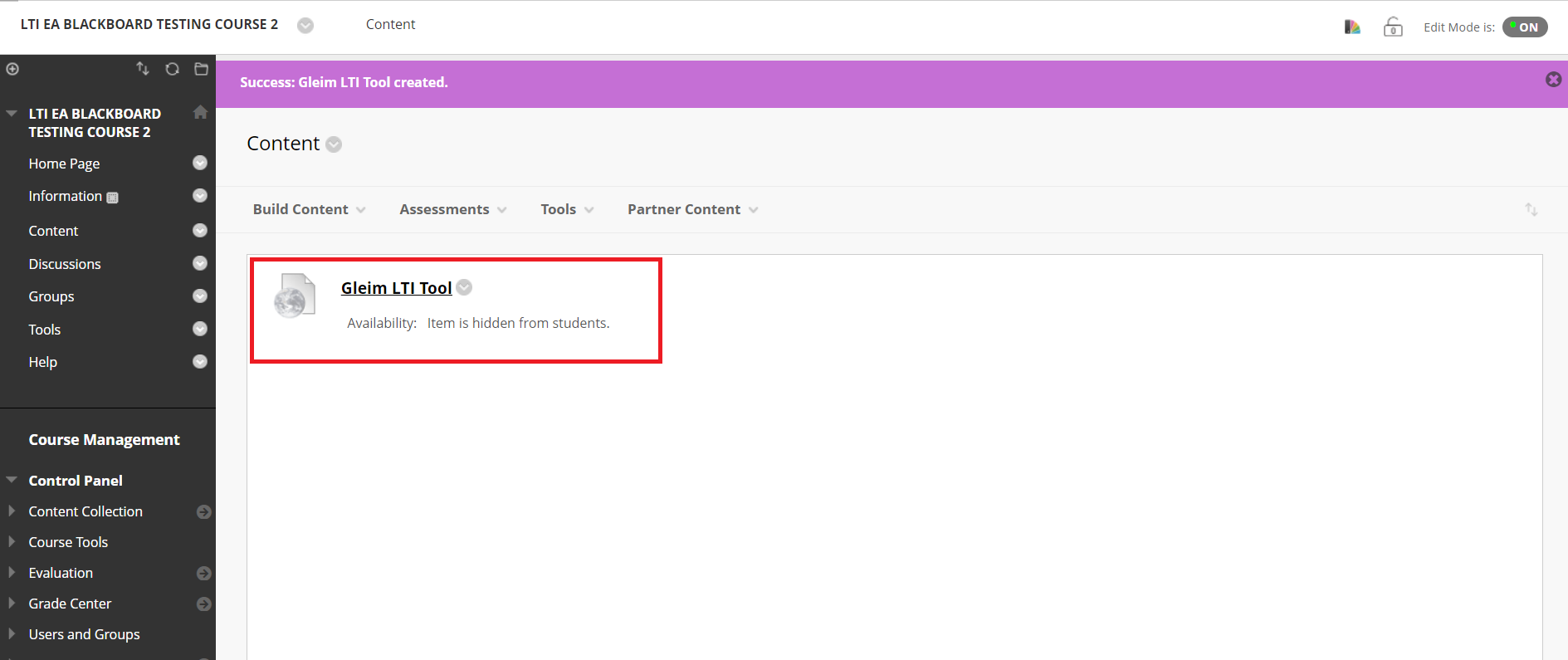
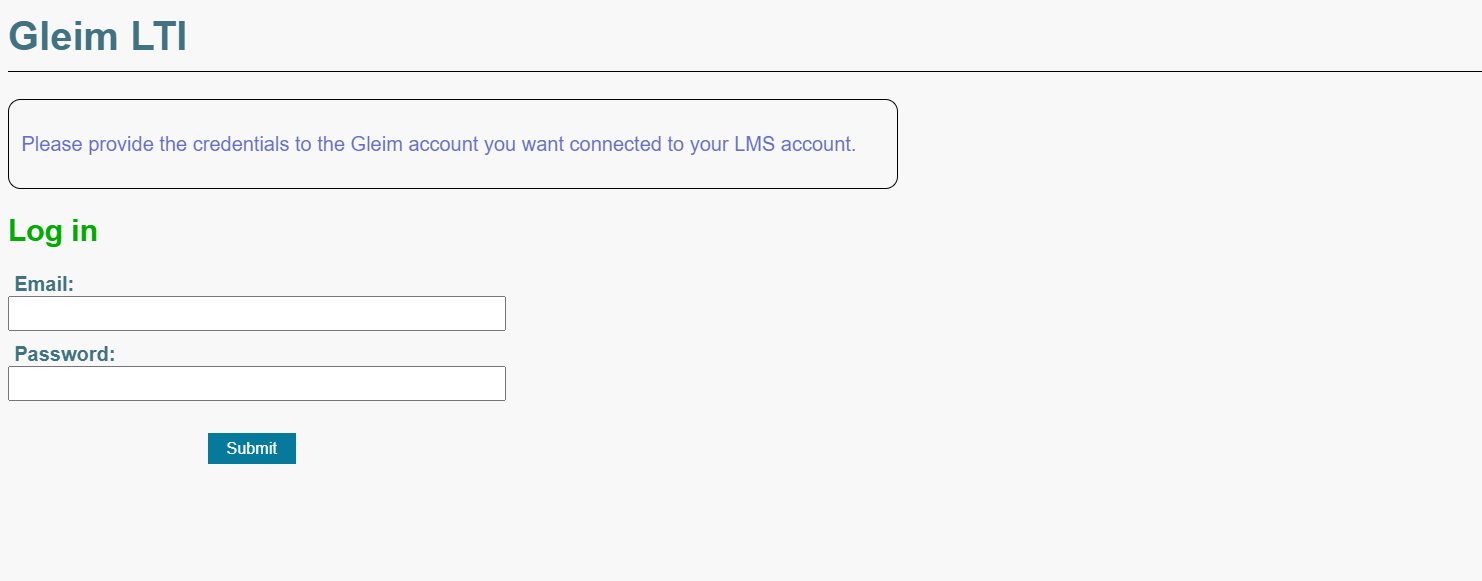
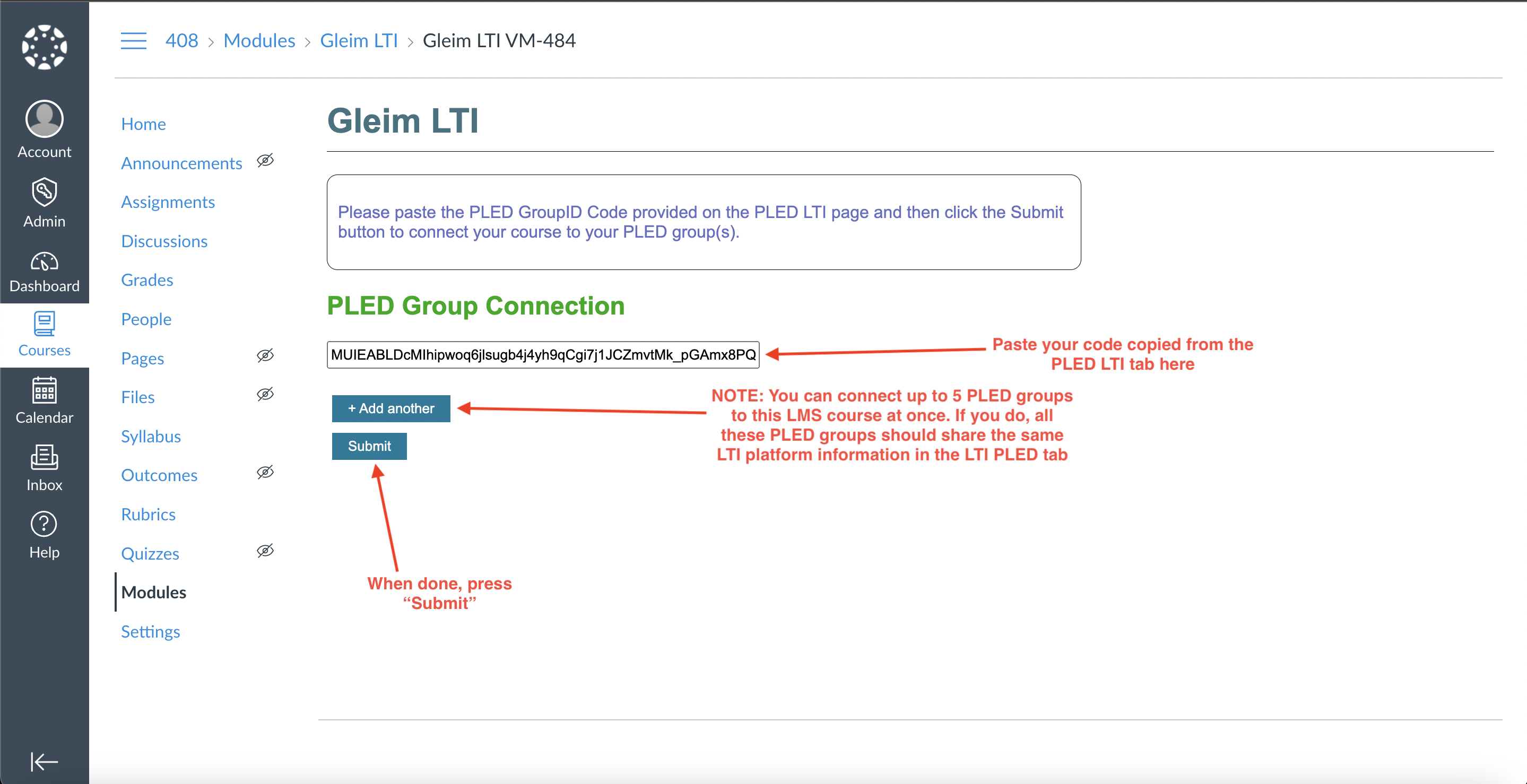
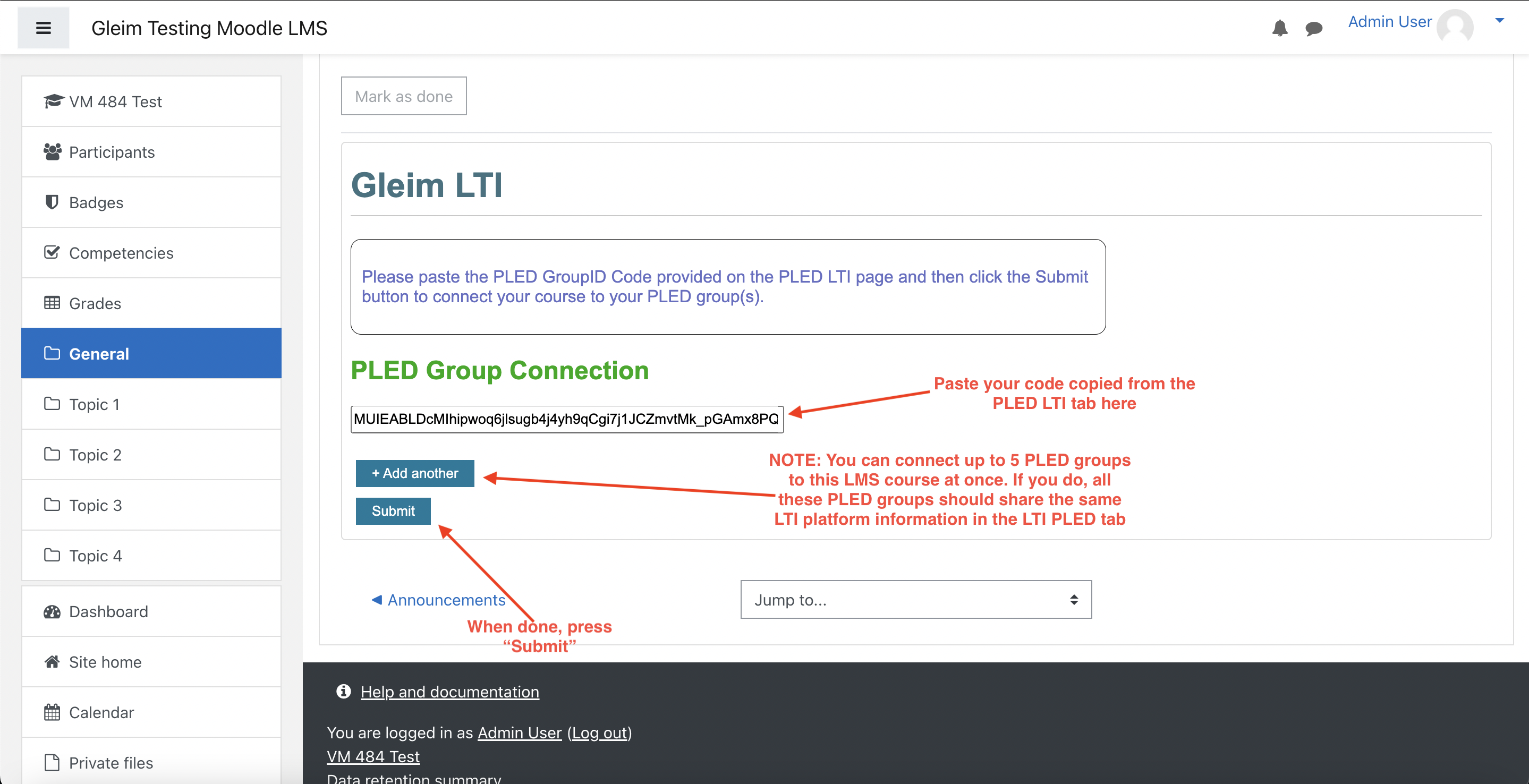
Click the Gleim LTI Tool to start the launch request. Input the PLED GroupID code(s) for the PLED/AvLearn group(s) you wish to connect to the Blackboard course.
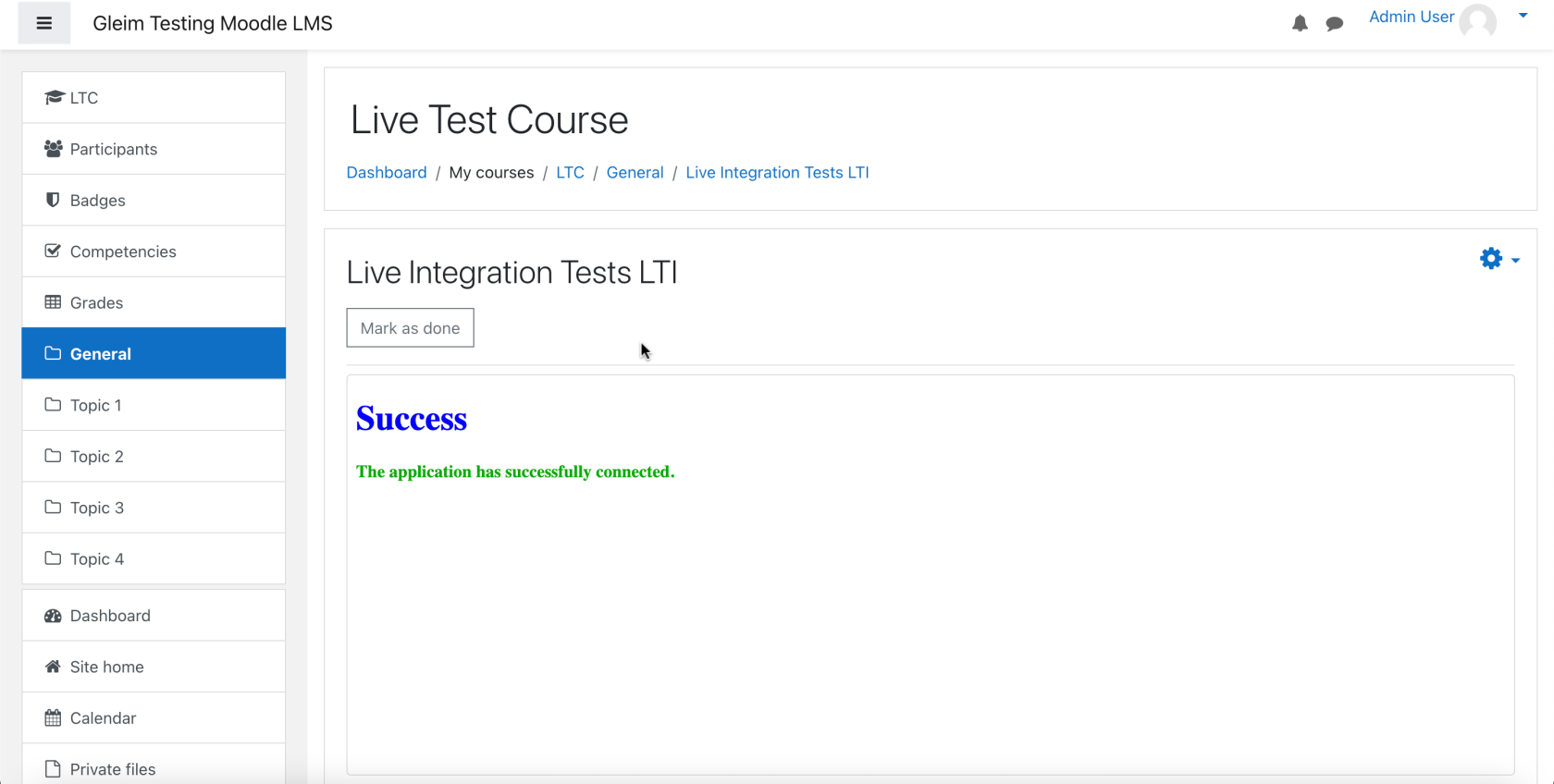
Click the “Submit” button after you input the copied code(s). You should see a green success message after completing this step.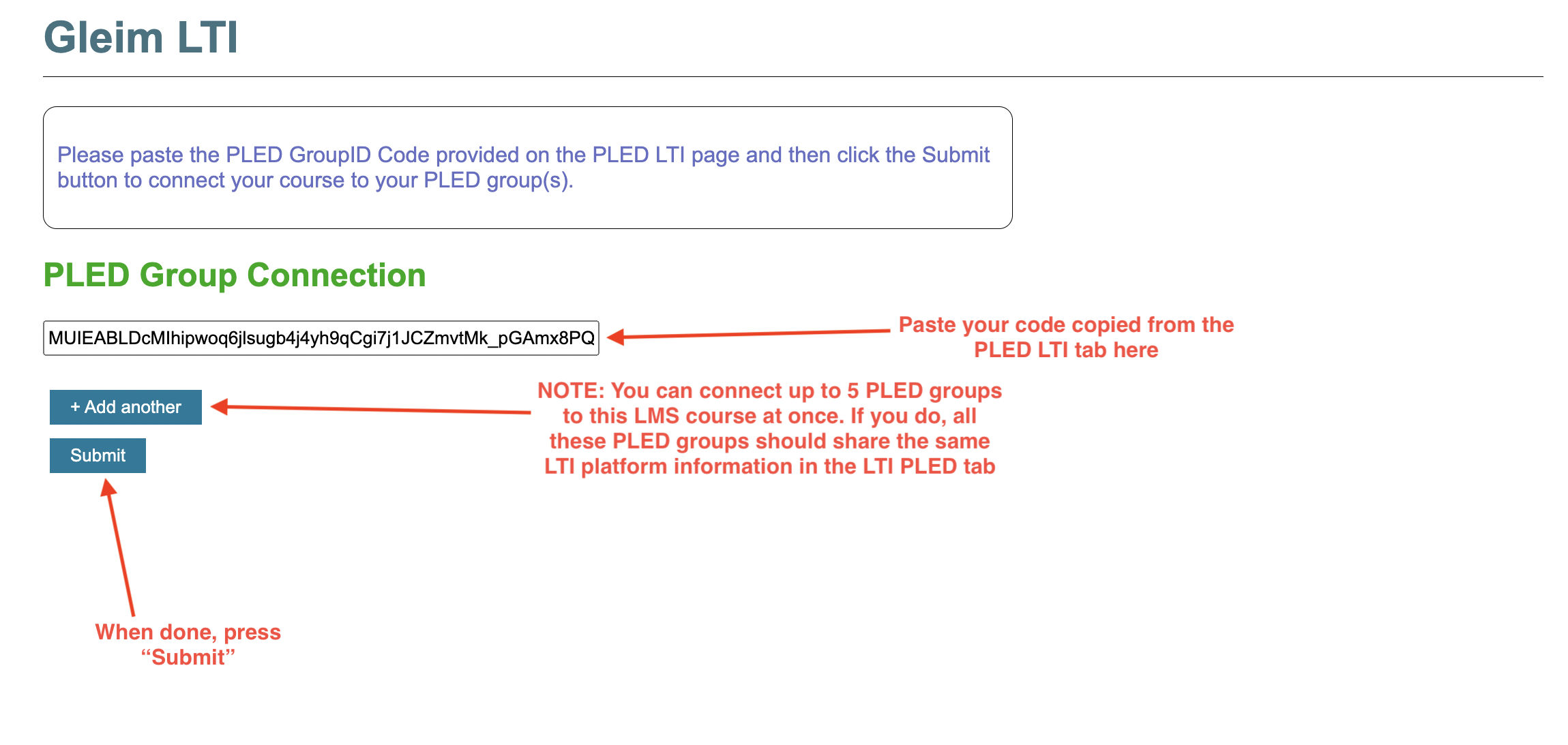 Via the “Add another” button: